
In the previous section, you gave Minecraft and Terraria addresses of their own, which completes the platform. To keep it running when a disk fails, a plugin corrupts a world, or an update goes wrong, you'll first decide what to back up, then schedule the routine work and choose what to watch.
Know What Holds the Data
Three separate places hold something that cannot be downloaded again, and each needs its own backup. The server folders hold the worlds, player data, and settings. The panel holds the users, the servers, and the egg variables, including the bots' tokens. The configuration files hold the secrets that tie everything together.
- Server folders: one backup per game server, made from the panel, as the next two headings show.
- The panel database: a dump of the
paneldatabase, which is small. A dump of the test panel with four servers weighed about 31 KB compressed. - The platform's files:
/var/www/pterodactyl/.envfor theAPP_KEY,/etc/pterodactyl/config.ymlfor the node's identity,/etc/wireguard/wg0.conffor the tunnel, and the nginx site file.
The commands for the second and third items fit on three lines. Run them from a root shell, and send the result to another machine, because a backup that sits on the disk it protects fails together with that disk:
mariadb-dump panel | gzip > /root/panel-$(date +%F).sql.gz
tar -czf /root/platform-files-$(date +%F).tar.gz /var/www/pterodactyl/.env /etc/pterodactyl/config.yml /etc/wireguard/wg0.conf /etc/nginx/sites-available/pterodactyl.conf
chmod 600 /root/panel-*.sql.gz /root/platform-files-*.tar.gz
A dump from the test machine loaded cleanly into a second, empty database and brought back the user, the four servers, and all 17 eggs, which is the check worth repeating on your own dumps from time to time: zcat panel-2026-10-10.sql.gz | mariadb a_test_database. The APP_KEY must come back with the dump, because the panel cannot decrypt its stored secrets without it.
Create a Server Backup
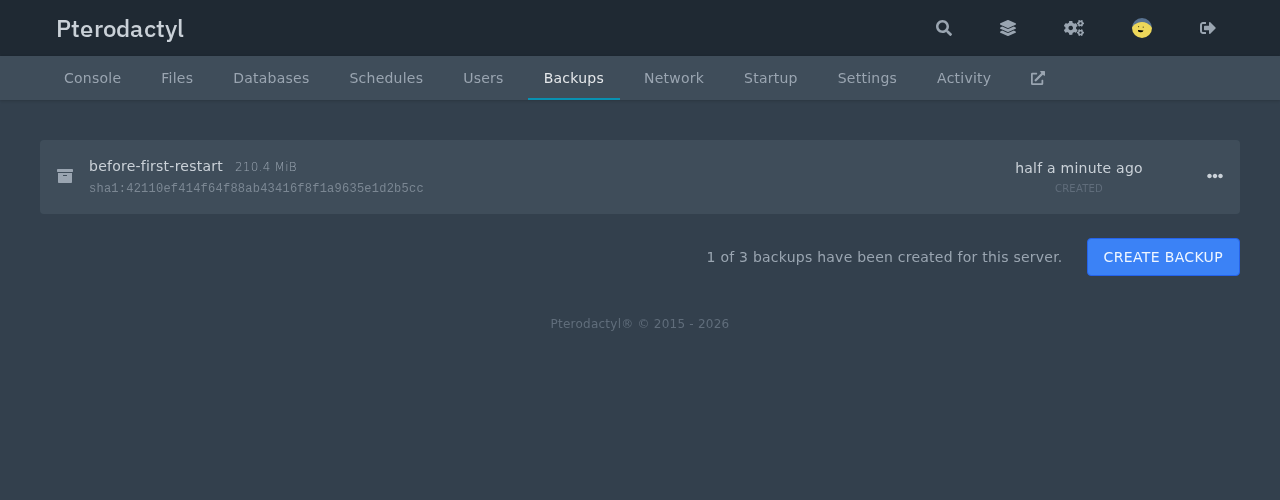
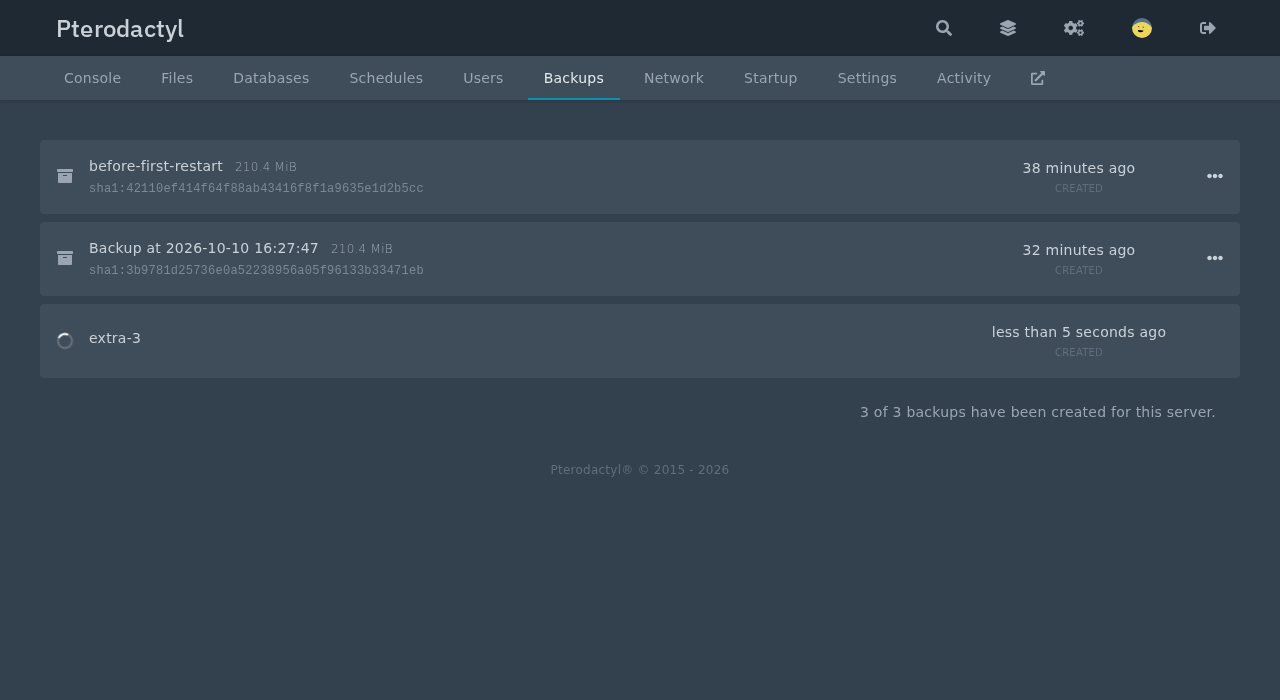
A backup of a game server is a compressed copy of its whole folder. The Backups tab of a server lists them, shows how many of the allowed slots are used, and creates new ones. The page of a server without backups says so. Once backups exist, a counter beside the button shows how many of the allowed slots are used, and the limit comes from the server form.
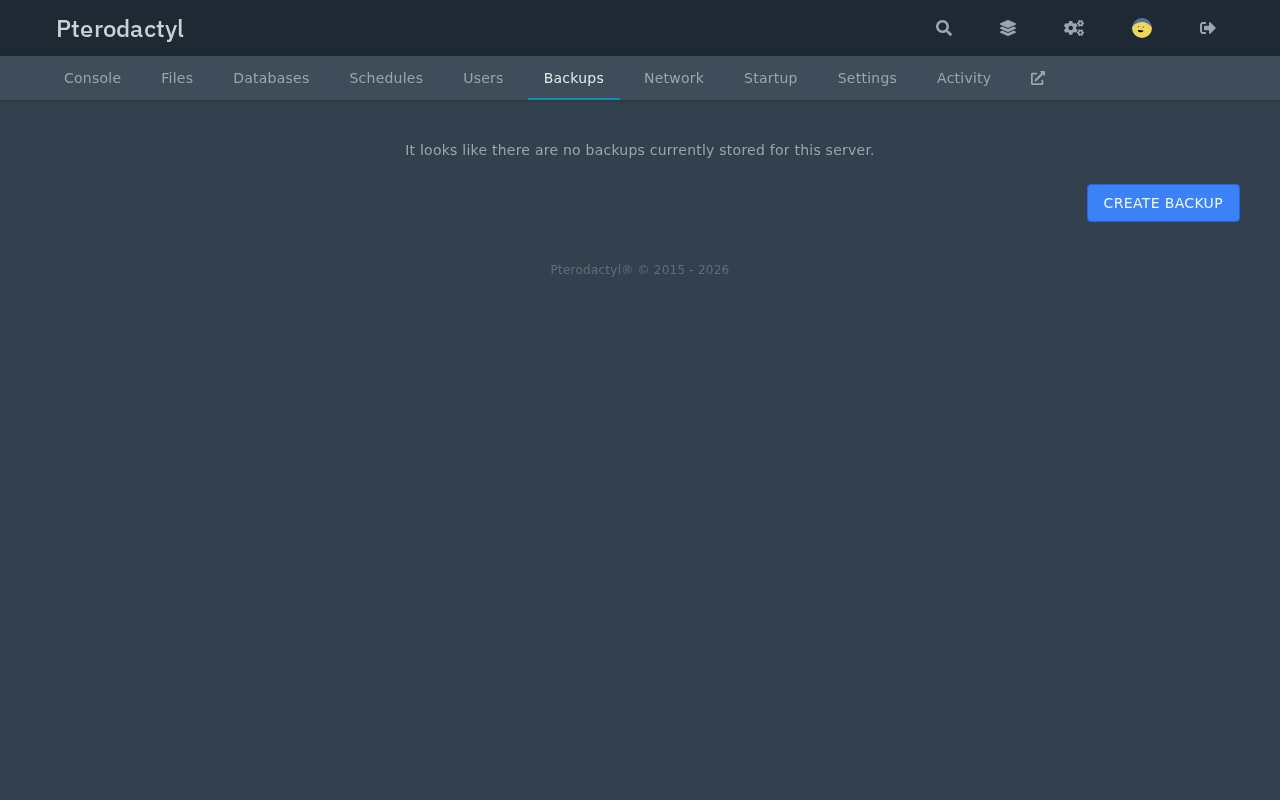
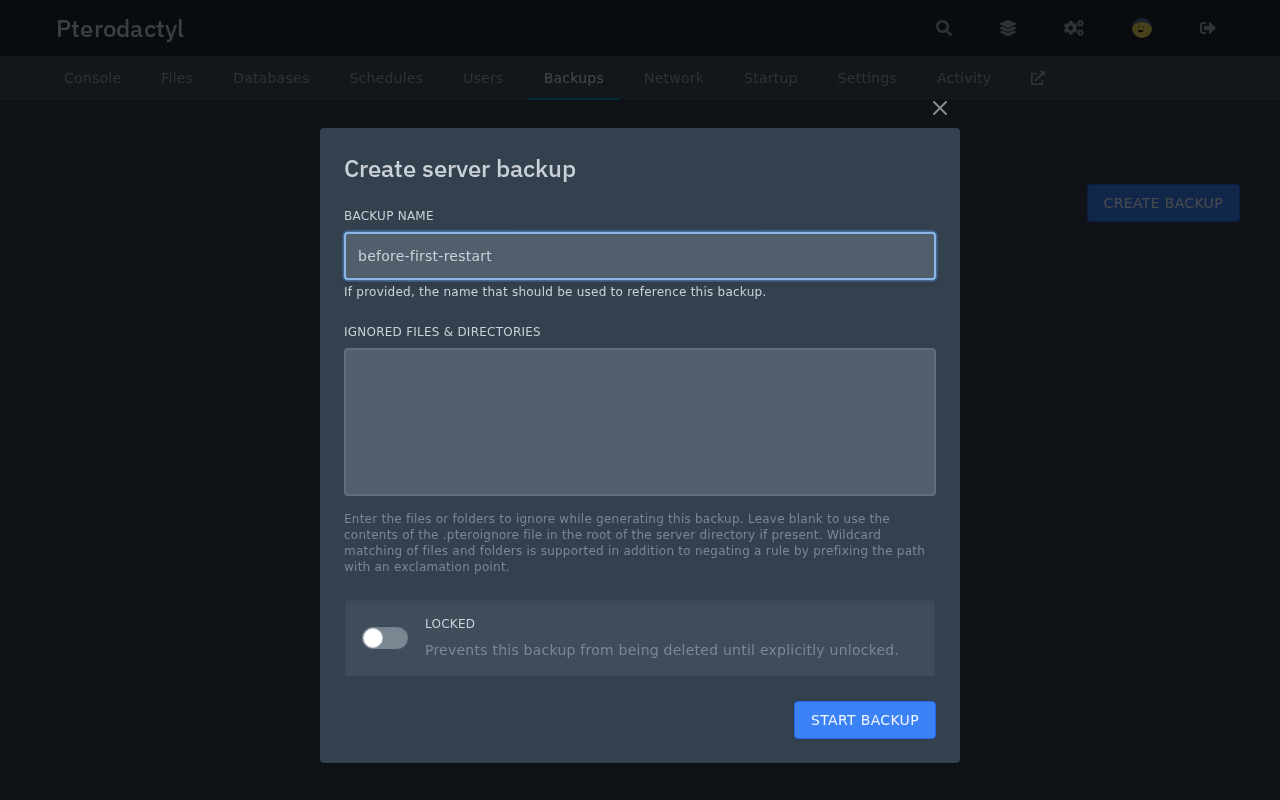
Choose Create backup. The dialog asks for a name, which is optional, and for a list of files and folders to leave out. When the list is empty, the panel reads the .pteroignore file at the root of the server folder if there is one, and that file takes wildcards. A checkbox in the same dialog locks the backup, which protects it from deletion.
The backup of the Minecraft server took a few seconds and produced a 210.4 MiB archive. Wings stores it on the node, in /var/lib/pterodactyl/backups, as a .tar.gz file named after the backup's identifier, and reports a SHA-1 checksum that the panel shows beside the name.
Restore a Backup
A backup matters only if it restores, so test it once on a server you can afford to break. The menu at the right of a backup offers four actions: Download, Restore, Lock, and Delete.
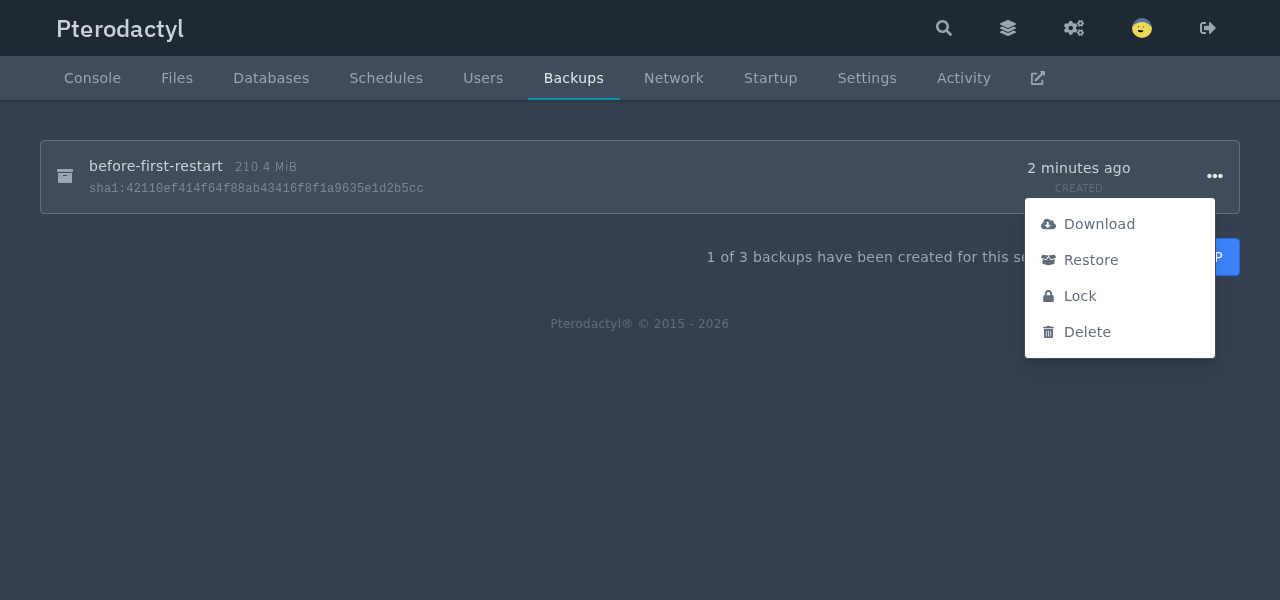
Restore asks for confirmation first. The dialog warns that the server will be stopped, and that its power controls, file manager, and backups stay unavailable until the restore ends. A checkbox decides whether the panel deletes every file before restoring, which gives an exact copy of the backed-up state instead of a merge.
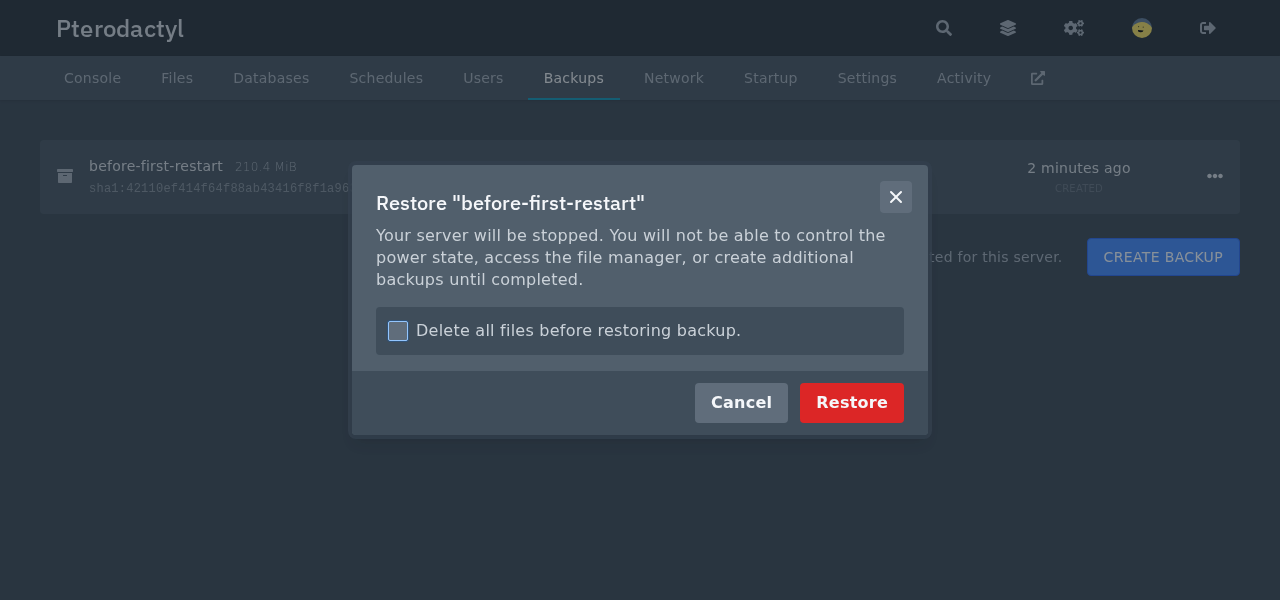
For the test, the server was stopped, two files were deleted from its folder, and the backup was restored without the wipe option. A few seconds later both files were back, and server.properties was byte-for-byte identical to the copy taken before the deletion. Start the server again afterward, because a restore leaves it stopped.
Before relying on local backups: make sure a second copy exists on another machine. To check, copy the files from /var/lib/pterodactyl/backups with rsync to a different host, or switch the panel to S3 storage as described on the additional configuration page, because the default stores backups on the node's own disk.
Schedule the Routine Work
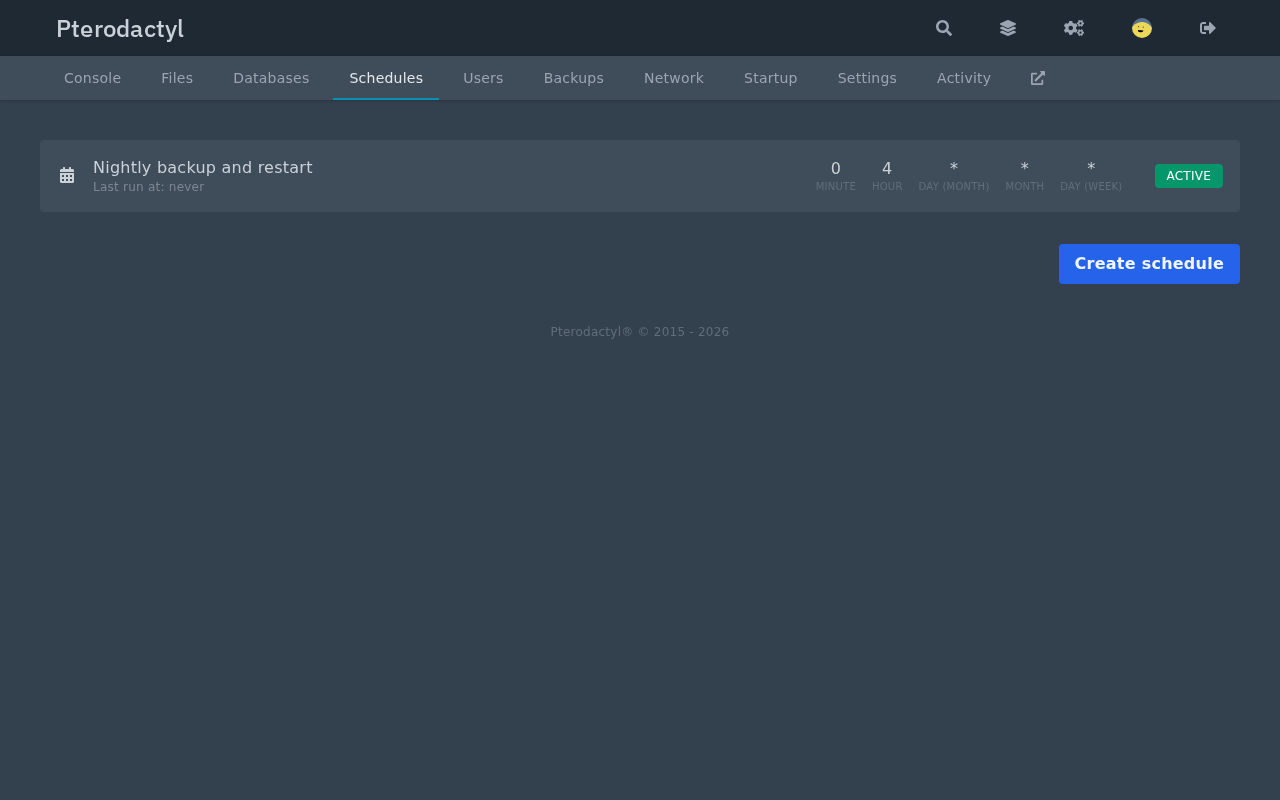
Nobody remembers to click Create backup every night, so a schedule does it. The Schedules tab of a server holds schedules, and each schedule has a cron expression and a list of tasks. The five boxes at the top of the form are the cron fields in the usual order: minute, hour, day of month, month, and day of week. The panel starts a new schedule at */5 for the minute, which means every five minutes, so change it before you save.
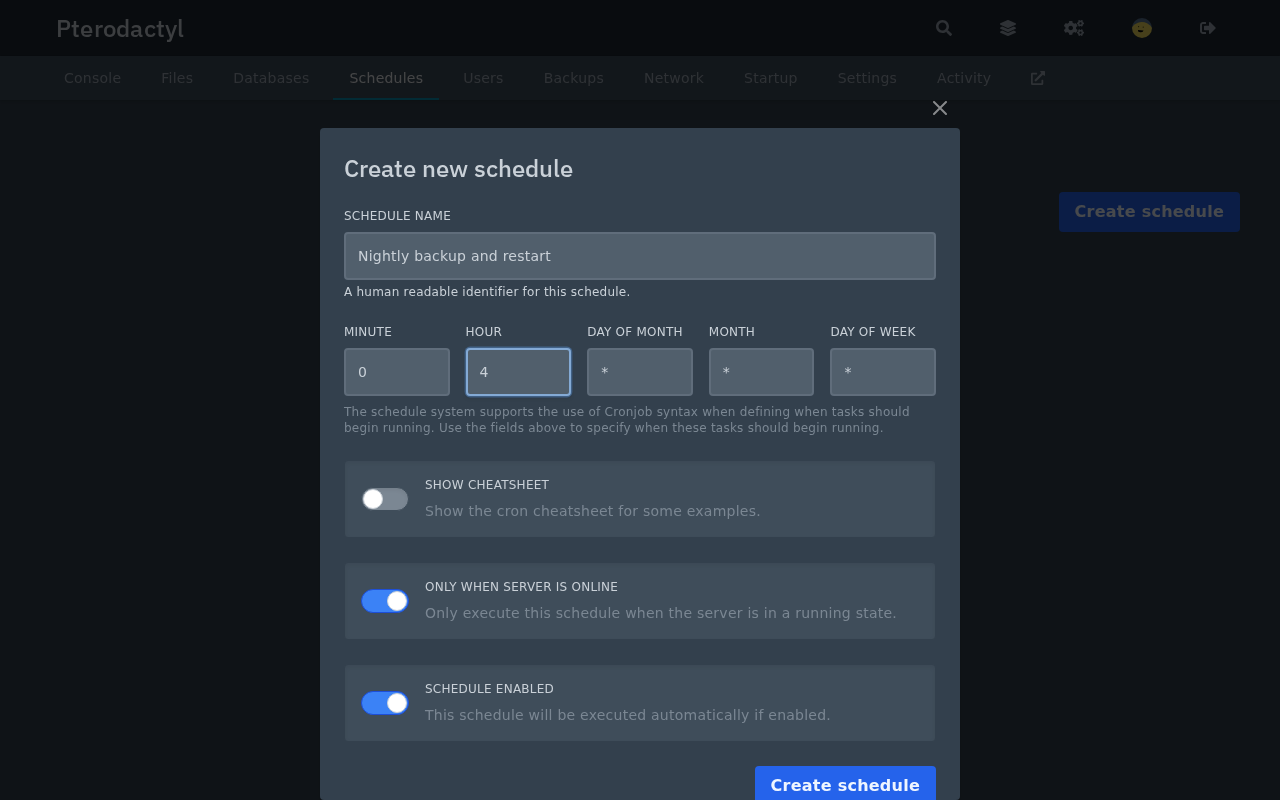
Two switches finish the form. Only When Server Is Online skips the schedule while the server is off, and Schedule Enabled turns the schedule on. The panel evaluates the cron fields in its own time zone, the one set in .env in Part 2, so 4:00 means 4:00 in that zone.
Add the Tasks
A task is one step of a schedule, and tasks run in order. Each has an action, a payload, and a time offset, which is the number of seconds to wait after the previous task. The three actions are Send command, Send power action, and Create backup.
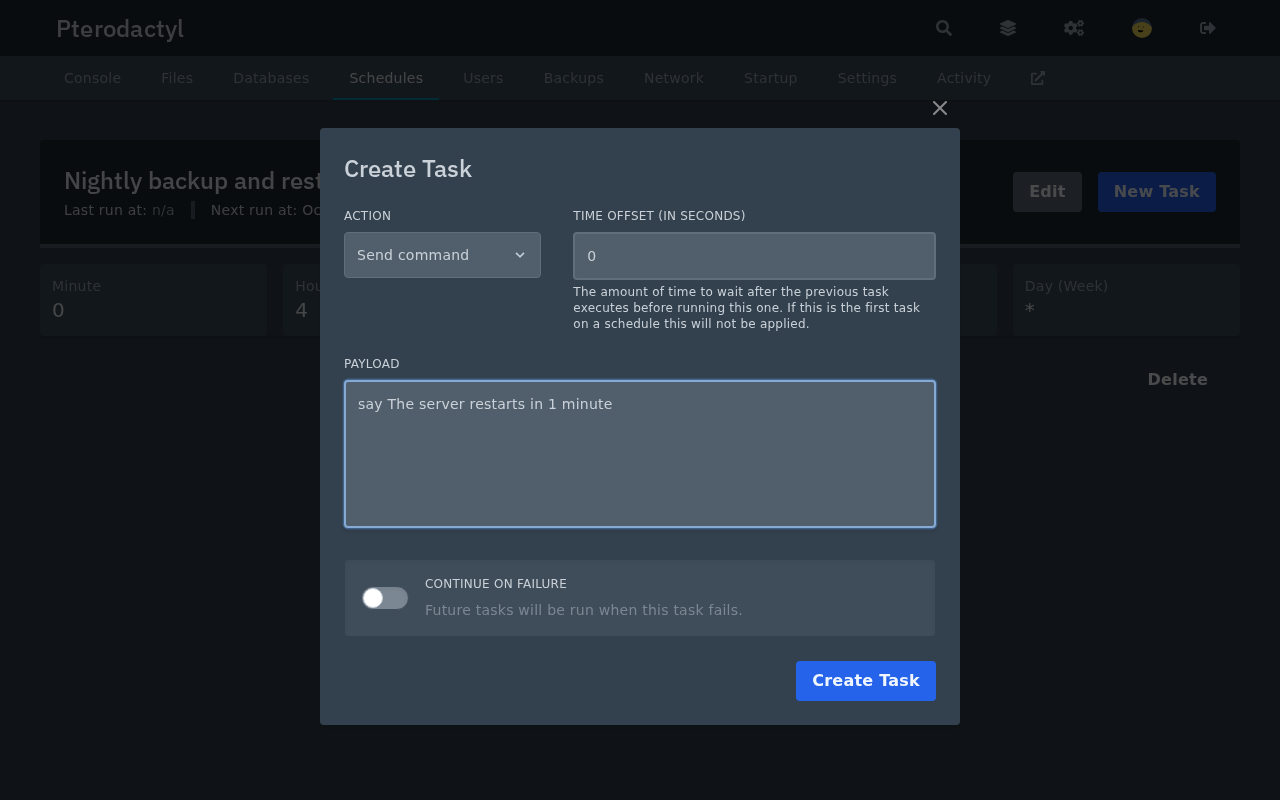
This guide's schedule has three tasks. The first sends say The server restarts in 1 minute to the console. The second creates a backup after 60 seconds, so players have time to read the message. The third sends the power action restart after another 60 seconds, which restarts the server with a fresh backup behind it.
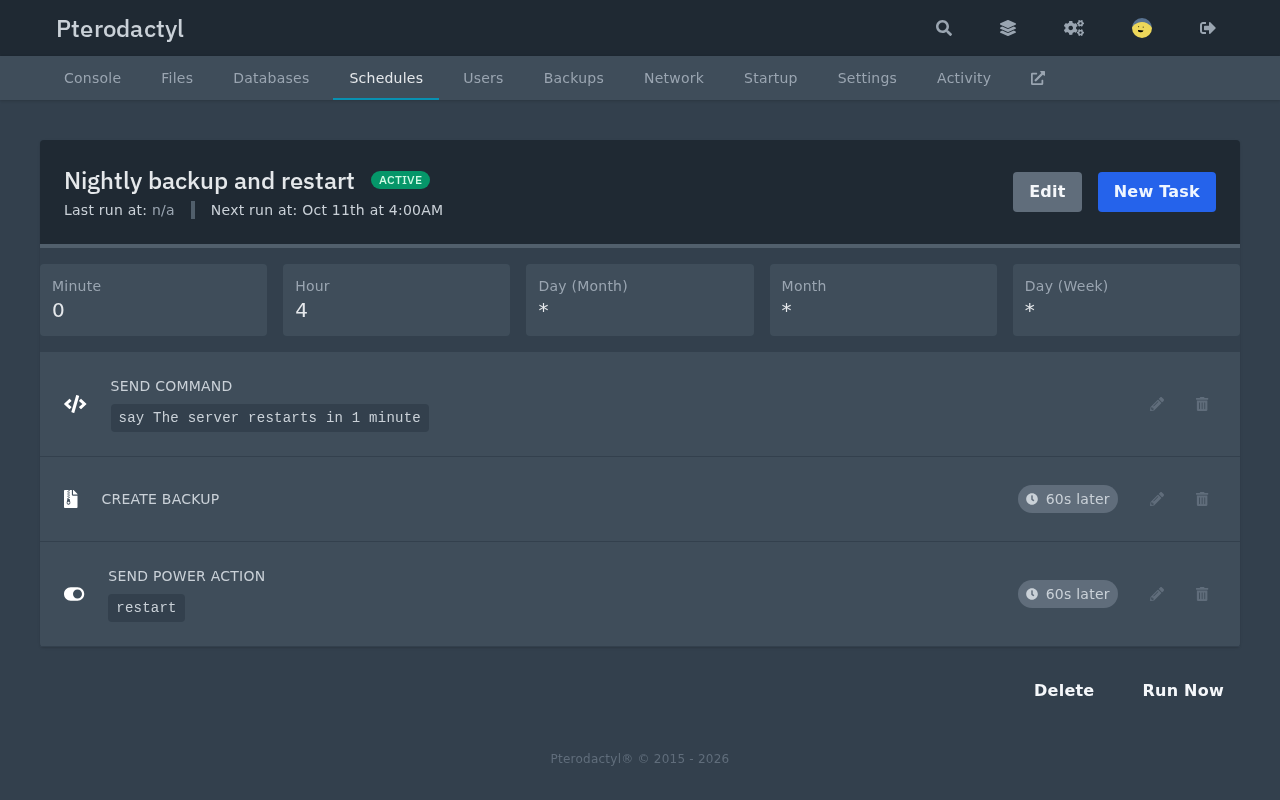
The Run Now button runs the schedule immediately, which is how to test it. The test run sent the message, created the backup 60 seconds later, and restarted the server 60 seconds after that, with the Wings log showing each step at those times.
What happens when a server has used all its backup slots?
With a limit of 3 and three backups present, the Create backup button disappears from the Backups tab, and a scheduled backup task still succeeded in the test: the panel deleted the oldest backup that was not locked, removed its file from the node's disk, and created the new one. A locked backup is never deleted this way, so lock the ones you intend to keep, such as the backup taken just before a major update.
Watch the Platform
The panel shows most of what matters, and a few commands cover the rest. Three places in the panel give a quick health check.
- The dashboard: every server with its address, live CPU, memory, and disk, and a colored bar at the right edge. Green is running, and red is offline or crashed.
- The node's About tab: the daemon version and the amount of the node's memory and disk already allocated to servers. A node at the top of its allocation cannot take another server, however empty the machine looks.
- A server's Activity tab: a log of who did what and when, including backups, schedule runs, and power actions. It answers the question of who restarted the server at three in the morning.
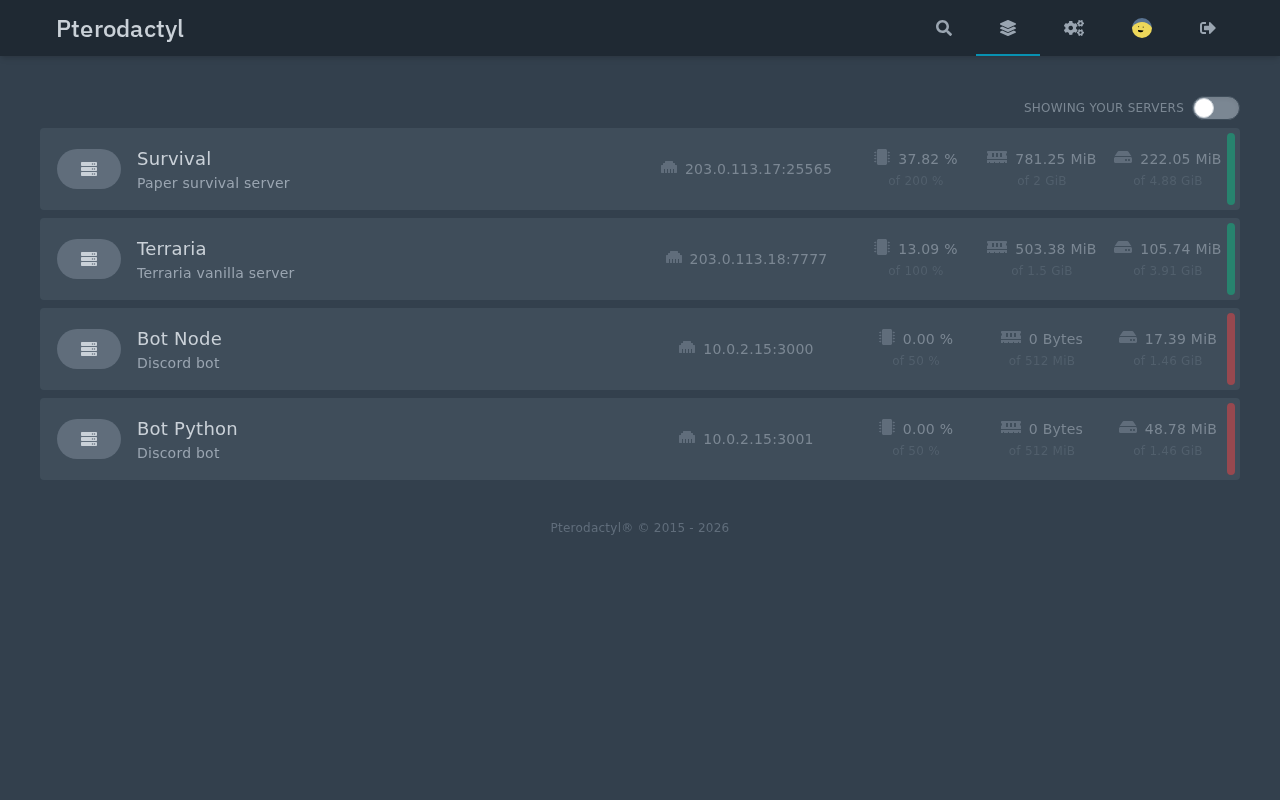
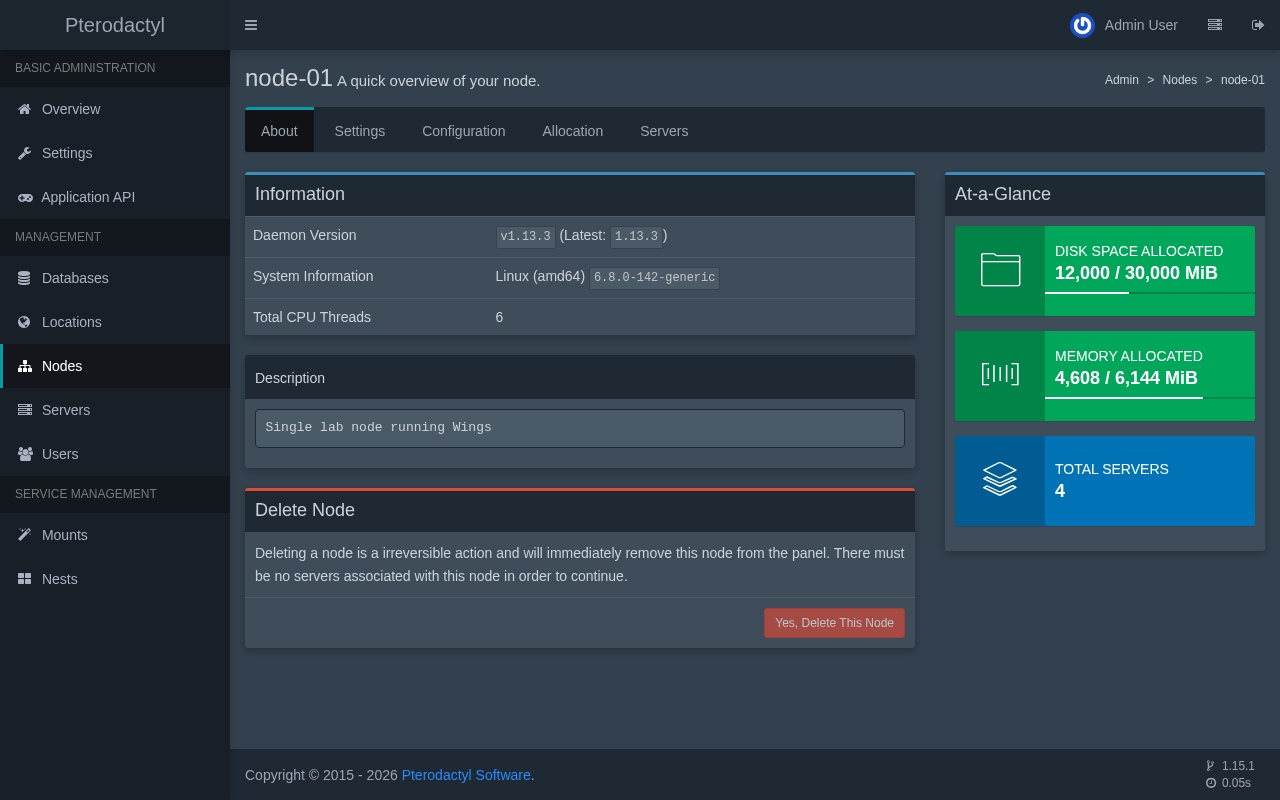
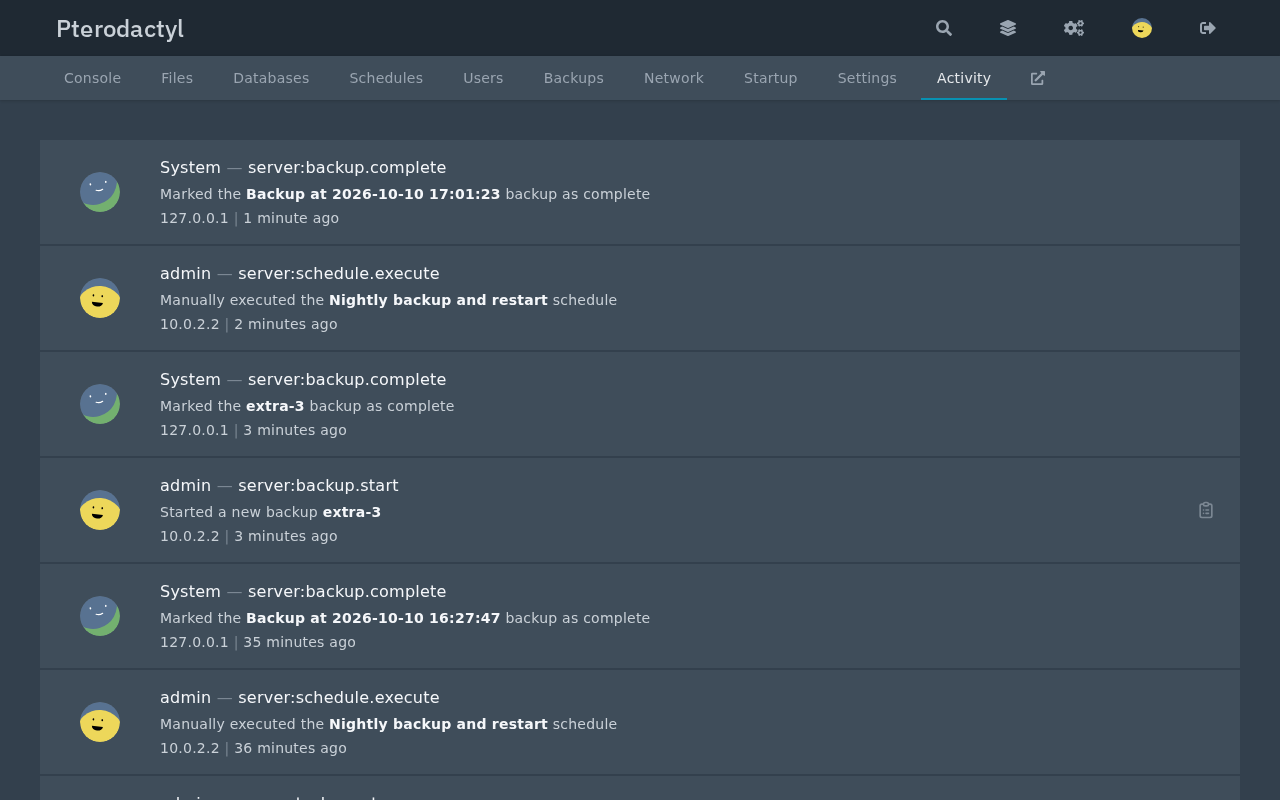
The commands below cover the machine under the panel. Each answers a different question:
systemctl status wings pteroq nginx mariadb redis-serversays whether every service of the platform is running.journalctl -u wings -ffollows what Wings does, including container creation errors such as the bind error from the previous section.docker stats --no-streamshows memory and CPU per container, measured by Docker itself.df -h /var/lib/pterodactylshows how much disk the servers and their backups have left.journalctl -u pteroqshows the queue worker, which is where a stuck installation notification appears.
A panel cannot report that its own machine went silent, so add a check from outside. Two checks run every few minutes from another machine catch a dead node before the players do: an HTTPS request to the panel's login page, and a TCP connection to each game address, such as nc -vz 203.0.113.17 25565.
Update the Panel and Wings
Pterodactyl publishes updates regularly, and the steps are short. Take the database dump and the file backup from the start of this section first, and read the release notes. The panel update follows the official updating page:
cd /var/www/pterodactyl
php artisan down

curl -L https://github.com/pterodactyl/panel/releases/latest/download/panel.tar.gz | tar -xzv
chmod -R 755 storage/* bootstrap/cache

composer install --no-dev --optimize-autoloader
php artisan view:clear
php artisan config:clear
php artisan migrate --seed --force

chown -R www-data:www-data /var/www/pterodactyl/*
php artisan queue:restart
php artisan up
The down command puts the panel in maintenance mode so that nobody meets a half-updated site, and up brings it back. The migration also refreshes the eggs that ship with the panel, which is why the documentation says never to edit them. A change to a shipped egg is overwritten by the next update, and an egg you imported yourself, like the Terraria and Node.js eggs in this guide, is not touched.
Wings updates by replacing its binary. The official upgrade page states that running servers are not affected while Wings is stopped for the swap:
systemctl stop wings
curl -L -o /usr/local/bin/wings "https://github.com/pterodactyl/wings/releases/latest/download/wings_linux_$([[ "$(uname -m)" == "x86_64" ]] && echo "amd64" || echo "arm64")"
chmod u+x /usr/local/bin/wings
systemctl restart wings
The panel and Wings keep to their own version numbers, and the two must be compatible. In the test, panel 1.15.1 and Wings 1.13.3 worked together, and the documentation's compatibility table is the place to check before upgrading only one of them.
If a game server needs a different Java version after a Minecraft update, change the Docker image on its Startup tab and restart, instead of updating anything on the machine. The image carries the Java version, and each server can use a different one.
In summary
- Server worlds, the panel database, and the platform's files are three separate backups, and the
APP_KEYmust travel with the database. - Local backups live on the node's own disk, so a copy on another machine or in S3 is part of the plan.
- A schedule combines a cron expression with tasks, and at the backup limit it replaces the oldest unlocked backup.
- The dashboard, the node tiles, and the Activity tab show the platform's state, and an outside check covers a silent machine.
To go further, How to Start a Small VPS Hosting Business With One Server covers selling the capacity of a single machine.