
In the previous section, you shared the family dataset over SMB, namely a folder that only computers on your home network can open. To reach the NAS from anywhere, you'll first order a routed IPv4 address with a WireGuard tunnel from Taipan Transit, and then end that tunnel on the NAS itself.
Decide What the Tunnel Is For
A home connection rarely lets the outside world start a conversation with the NAS. The router translates the NAS's private address, and many providers go a step further and place whole neighborhoods behind carrier-grade NAT, so there is no public address to forward a port to at all. Why CGNAT stops you from hosting a server at home explains the mechanism in detail.
A routed IPv4 address delivered through a tunnel avoids the problem. Taipan Transit routes the ordered address through a tunnel that the NAS opens by itself, so the public address stays the same when the home connection's address changes. How to get a public IP for a home server covers the same idea from the buyer's side.
Choose What to Publish
Once the NAS has a public address, every service listening on it is visible to the whole internet, and the first candidate to rule out is the SMB share from the previous section. CISA, the US cybersecurity agency, recommends blocking all versions of SMB at the network boundary, which means TCP port 445 together with TCP port 139 and UDP ports 137 and 138, and explains why in its SMB security best practices. File sharing over SMB stays on your home network.
What goes out through the tunnel is a web application with its own login and an HTTPS certificate. The TrueNAS app catalog offers several, and this section uses Nextcloud, a file-sharing server with a web interface and phone apps. The same steps apply to any app whose install form has a port and a certificate field.
Before publishing a service: make sure it asks for a password and serves HTTPS. To check, read the app's install form for an admin password field and a Certificate ID field, and leave the app uninstalled if either is missing.
Order a WireGuard Tunnel
Ordering starts in the Taipan panel. Picking a tunnel type from the service list opens that product's own configuration screen, the same layout behind GRE, IPsec, and WireGuard alike: a term, the number of IPv4 addresses, a traffic tier, and an optional coupon.
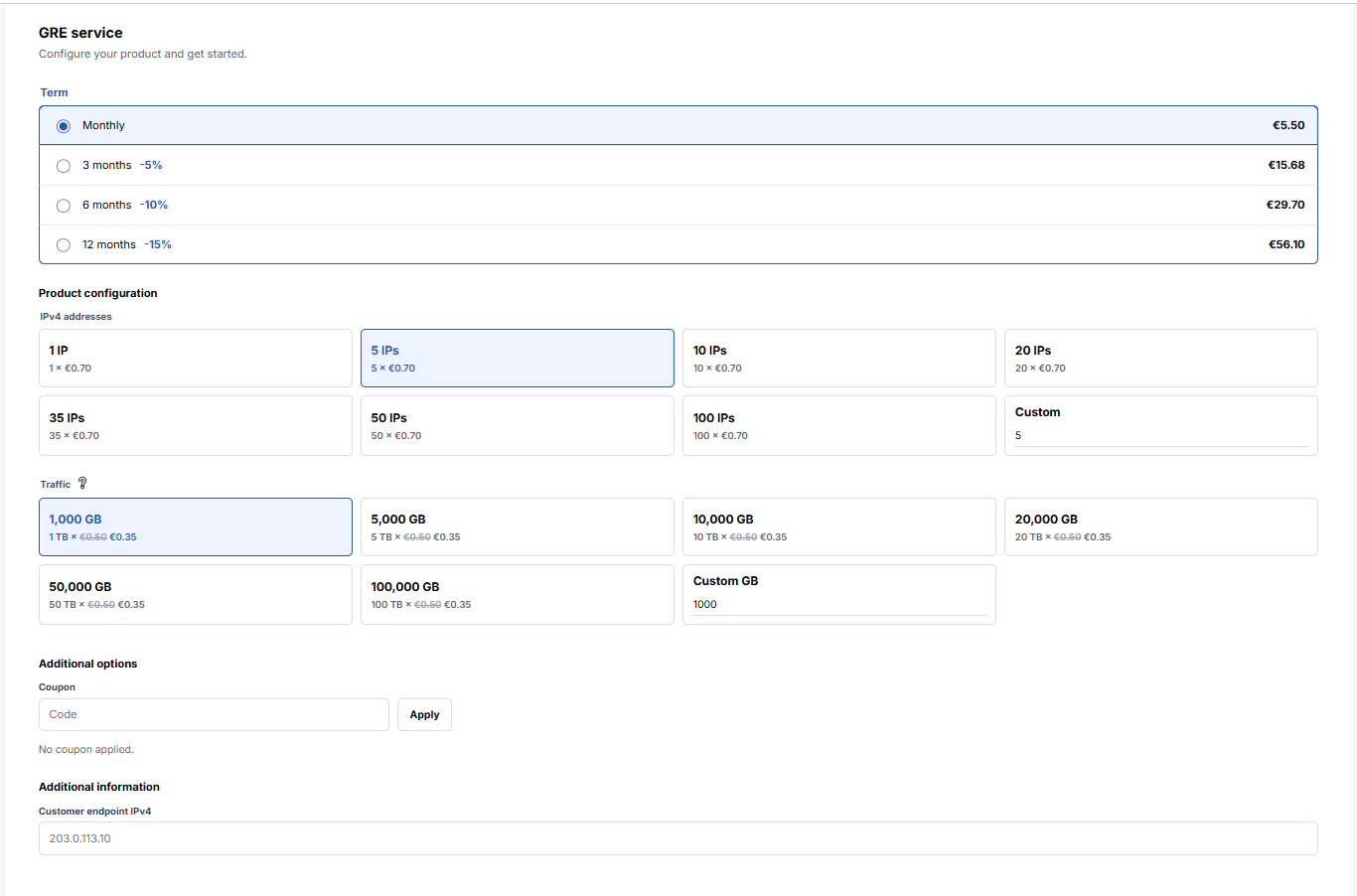
One IPv4 address is enough for a NAS that publishes a single app, and more addresses can join the same tunnel later. WireGuard is the tunnel type to pick for a home connection, because a peer proves its identity with a key pair and keeps working after the home address changes, where GRE needs a fixed endpoint address. The hosting platform guide compares the three tunnel types in more detail, and the WireGuard tunnels page lists what each plan includes.
After the order completes, the panel shows the routed address, the WireGuard endpoint to connect to, Taipan Transit's public key, and the UDP port. The examples in this section use addresses from the documentation range 203.0.113.0/24, so replace them with the values from your own order:
endpoint: 203.0.113.9
routed:   203.0.113.17
If the order confirms but the tunnel briefly shows a pending state, that is normal. The router handling the endpoint provisions it on its own schedule, so give it a short moment before testing.
Restrict the Admin Services to the Home Network
This step comes before the tunnel on purpose. When the routed address appears on the NAS, every service that listens on all addresses starts answering on it too, and the NAS has two of them: the web interface and, once you have created a share, the SMB service.
Doesn't the router's firewall already protect the NAS?
It protects the traffic that goes through the router. Tunnel traffic arrives on a separate network interface of the NAS itself, so the home router never sees it and can't filter it. The NAS has to decide for itself which addresses its services answer on.
Bind the Web Interface to the Home Address
Open System, then General Settings, and choose Settings in the GUI card. The Web Interface IPv4 Address field says 0.0.0.0, which means every address. Pick the NAS's home address from the list instead, the same one you reserved in your router.
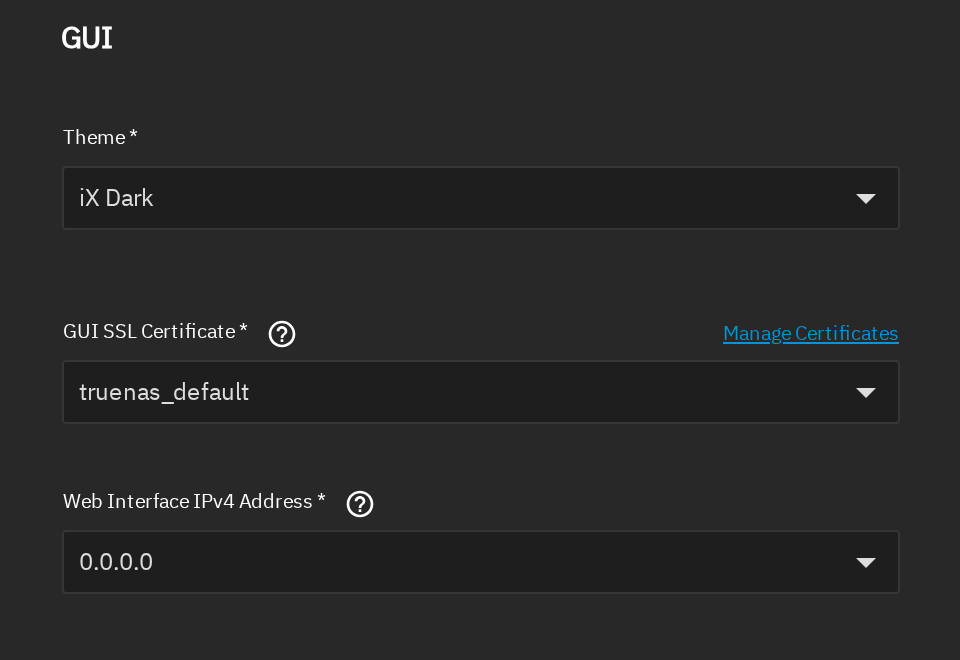
Before saving the GUI settings: make sure the address you choose is the one your browser is using right now. To check, compare it with the address in the browser's address bar and the one the NAS console prints, because a wrong value locks you out of the web interface until you fix it from the console menu.
The IPv6 field can stay as it is, since the tunnel carries IPv4 only. For a second layer, open System, then Advanced Settings, and look for the Allowed IP Addresses card under Access. It restricts the web interface to the addresses or subnets you list, so adding your home subnet there keeps every other source out even if the bind setting changes someday.
Bind SMB to the Home Address
Open System, then Services, and choose the pencil icon on the SMB row. Select Advanced Settings and scroll to the bottom. The Bind IP Addresses list is empty, which makes SMB listen everywhere. Add the NAS's home address, and save.
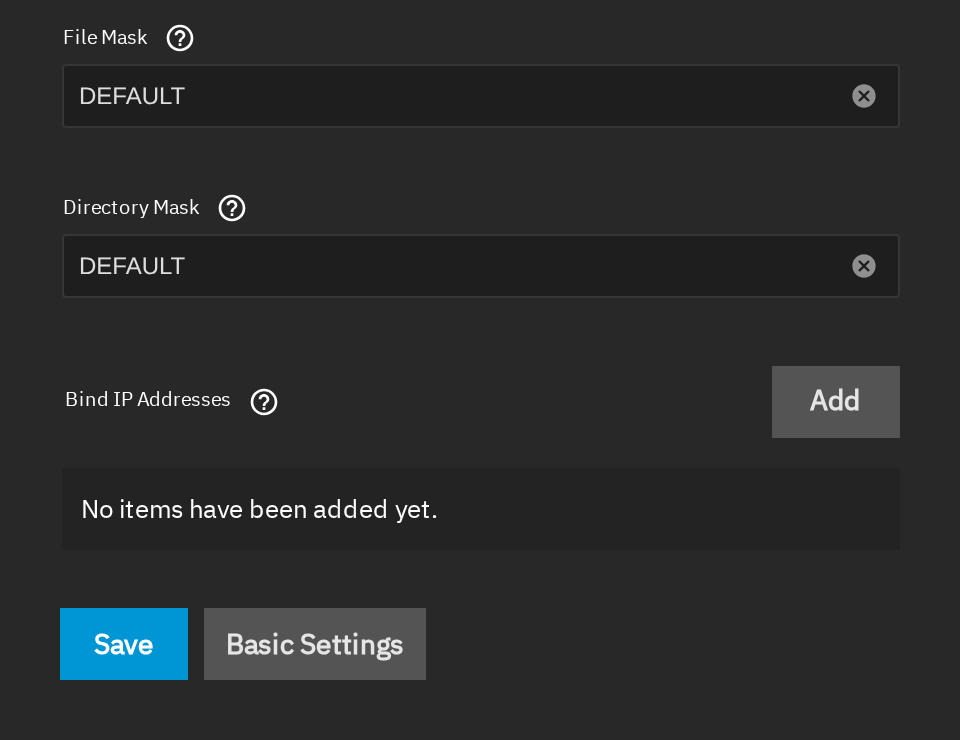
The Services page also shows every other service the NAS can run. SSH stays stopped until you start it, and it should stay stopped unless you use it, since a login service on a public address attracts guessing attempts within hours.
Set Up WireGuard on TrueNAS
TrueNAS is Debian Linux underneath, and it ships the same WireGuard tools as any other Linux server: wg and wg-quick. There is no app to install and no plugin to enable. The work is a configuration file, a key pair, and one line that starts the tunnel at every boot.
Keep the Files on the Pool
TrueNAS is an appliance: its root and /usr filesystems are mounted read-only, and the middleware regenerates the files under /etc from its own configuration. The pool is the place for your own files, because it survives updates and reboots. Create a dataset named wireguard with the Generic preset, then open System, then Shell, and generate the key pair inside it:
sudo -i
cd /mnt/tank/wireguard
chmod 700 .
umask 077
wg genkey | tee taipan.key | wg pubkey > taipan.pub
cat taipan.pub
The last command prints the public half, the only part that has to leave the NAS:
W8Eea2e7z1MWIrRznz+0i7PpBQ77Xs+hFWYIzDlnrEA=The panel asks for this public key when you register your side of the tunnel. The private key in taipan.key never gets pasted, emailed, or submitted anywhere, the same way an SSH private key stays on your own machine.
Write the Configuration
With the routed address and endpoint from your order, plus Taipan Transit's public key from the panel, create /mnt/tank/wireguard/wg0.conf with nano wg0.conf and paste the following:
[Interface]
PrivateKey = <contents of taipan.key>
Address = 100.64.0.2/32
Table = off
PostUp = ip address add 203.0.113.17/32 dev lo
PostUp = ip rule add from 203.0.113.17/32 table 20 priority 100
PostUp = ip route add default dev %i table 20
PreDown = ip rule del from 203.0.113.17/32 table 20 priority 100
PreDown = ip address del 203.0.113.17/32 dev lo

[Peer]
PublicKey = <Taipan's public key, from the panel>
Endpoint = 203.0.113.9:51820
AllowedIPs = 0.0.0.0/0
PersistentKeepalive = 25
Table = off stops wg-quick from replacing the NAS's own default route, which still has to leave through the home router for everything else. The second PostUp line builds a separate routing table that only traffic sent from the routed address ever uses, so a reply from 203.0.113.17 goes back through the tunnel while the NAS's ordinary traffic is untouched.
Why does the routed address go on the loopback interface?
Because the NAS needs to treat the address as its own. The tunnel interface only carries packets, and an address on lo makes the NAS accept packets for it and answer from it, the way a service running directly on the gateway would. The Address line uses 100.64.0.2 from 100.64.0.0/10, a shared address range that never appears on the public internet, so the tunnel interface itself costs no public address.
The wg-quick command reads that file, so you can start the tunnel by hand to test it:
wg-quick up /mnt/tank/wireguard/wg0.conf
wg show
A working tunnel lists the peer, the endpoint, and a latest handshake a few seconds old. A peer with no handshake means the packets are not reaching Taipan Transit, so compare the endpoint, the public keys on both sides, and the UDP port before looking anywhere else. Once the handshake shows, ip route get 1.1.1.1 from 203.0.113.17 should answer with dev wg0, which confirms the replies leave through the tunnel.
Bring the Tunnel Up at Every Boot
A tunnel started by hand disappears at the next restart, and TrueNAS has a place for commands that should run at startup: Init/Shutdown Scripts. Open System, then Advanced Settings, and choose Add in the Init/Shutdown Scripts card. TrueNAS first shows a warning that changing advanced settings can be dangerous, which is fair, since a wrong command here runs as root on every boot.
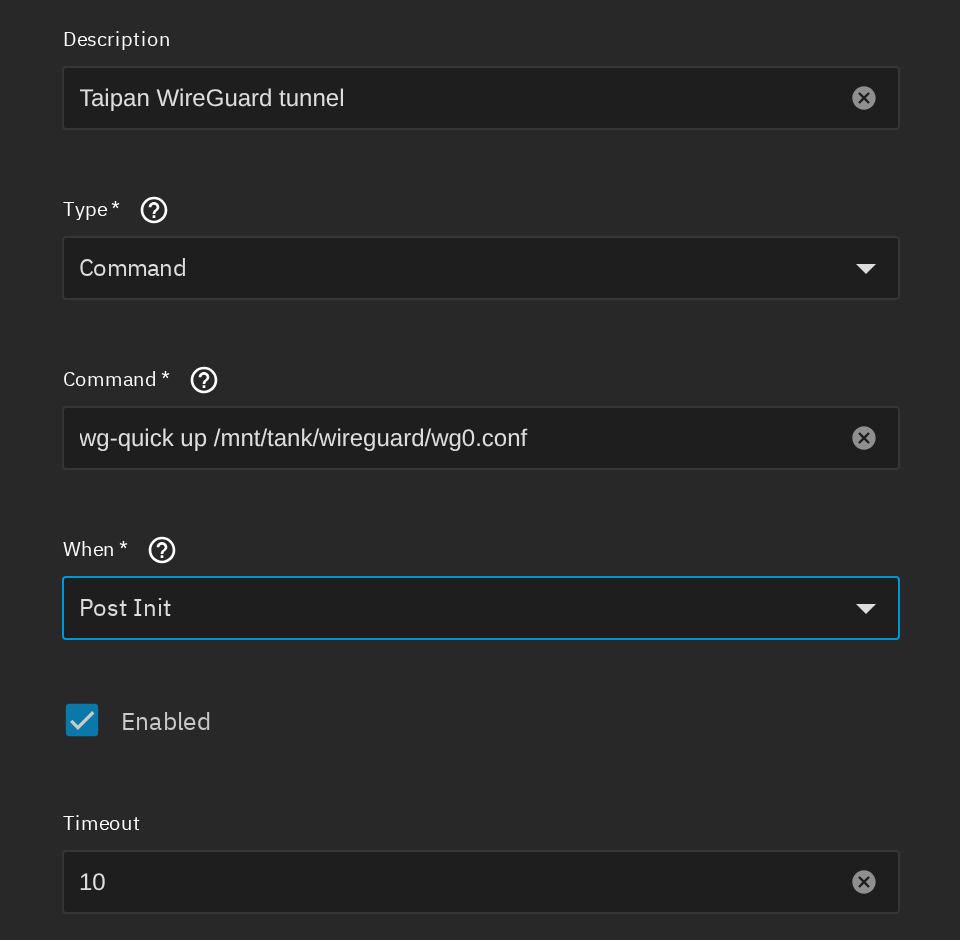
Set Type to Command, paste wg-quick up /mnt/tank/wireguard/wg0.conf, and set When to Post Init, so the command runs after the pool is available. The default timeout of 10 seconds is plenty.
Why a startup script and not a line in a system network file?
Because TrueNAS manages its own system files and rewrites them. The script list belongs to the saved TrueNAS configuration, so it comes back after an update and travels with a configuration export.
Publish One App with HTTPS
The tunnel is up and the NAS answers on its public address. A web app needs a certificate before browsers will trust it, and a certificate needs a name, so the first job is a domain name that points at the routed address.
Get a Certificate
Create a DNS record at your domain provider that points a name such as nas.example.com at the routed address. Then ask for a Let's Encrypt certificate from TrueNAS in three steps, all under Credentials, then Certificates:
- Add an ACME DNS-Authenticator for your DNS provider. The documentation lists Cloudflare, DigitalOcean, Route53, and OVHcloud, and the provider's API credentials go in this form.
- Add a Certificate Signing Request with your domain name as the Common Name.
- Use the icon next to that request to create the ACME certificate, and select the authenticator for the domain.
Let's Encrypt checks ownership by asking for a temporary DNS record, so the web interface never has to be reachable for the certificate to be issued. The TrueNAS documentation for Let's Encrypt certificates walks through each form.
Install the App on the Routed Address
Open Apps, then Discover, and search for Nextcloud. The first time you use Apps, TrueNAS asks you to choose a pool for them, and it shows a warning that third-party applications can introduce risks like data loss or system disruption. Read it and agree. Then choose Install and fill in the Nextcloud Configuration section: an admin user, a long admin password, and the Host field with your DNS name and port, for example nas.example.com:30027. The app adds that value to its list of trusted domains.
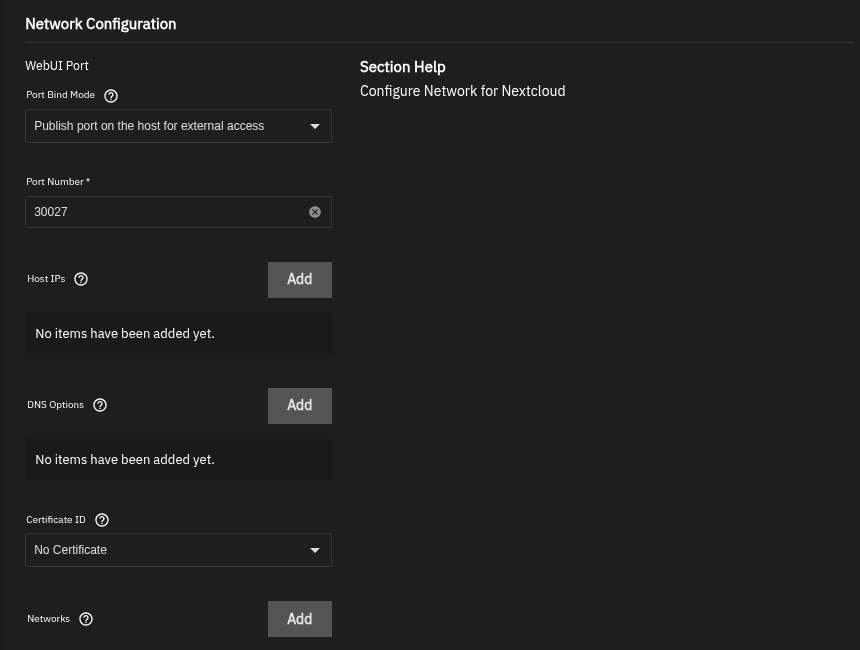
In Network Configuration, leave Port Bind Mode on Publish port on the host for external access, keep the default port 30027, and select your new certificate in Certificate ID. With a certificate selected, the app serves HTTPS on that port, so visitors use an address like https://nas.example.com:30027. Host IPs controls which host addresses the port listens on, and an empty list means all of them, home address and routed address alike.
Every app you install later listens on all addresses unless you restrict it. For apps that should stay private, add the NAS's home address to Host IPs, and the app stops answering on the routed address. The TrueNAS apps documentation describes the field.
Test the Connection from Outside
Testing from inside your home proves little, because your own router answers most requests locally. Switch your phone from Wi-Fi to mobile data, which puts it on a different network, and run three checks.
- Open
https://nas.example.com:30027. The browser should show a padlock and the Nextcloud login page. If it warns about the certificate, recheck the Certificate ID field and the DNS record. - Open
https://203.0.113.17, the bare routed address on the standard HTTPS port. Nothing should answer, because the web interface listens on the home address only. - Try
smb://203.0.113.17/familyfrom the phone's file app. The connection should fail, which is the result you want.
If the first check fails and the tunnel handshake is fresh, run ip rule on the NAS and confirm the rule for the routed address is present. A missing rule means PostUp did not run, and starting the tunnel by hand shows the error.
In summary
- A routed IPv4 through a WireGuard tunnel gives the NAS a public address of its own.
- The web interface and SMB get bound to the home address before the tunnel comes up.
- The configuration and keys live on the pool, and a Post Init script starts the tunnel.
- One app with a login and a certificate is the only thing published to the internet.
In the next section, you'll schedule snapshots and backups for the pool and set up alerts so the NAS tells you when something breaks.