
In the previous section, you registered a node and created 11 Minecraft ports on it, namely 25565 to 25575. To let players join a world, you'll first create a Minecraft server on that node and start it from the panel.
Fill in the Server Form
In the admin area, open Servers, then Create New. One long form holds every decision, grouped in panels from top to bottom. The first panel names the server and picks its owner, and the owner is a panel user who will see the server in the dashboard. The administrator account from Part 2 works for a first server. The checkbox "Start Server when Installed" is on by default, and it is the right choice here.
The second panel places the server. Pick the node, then the default allocation, which is the IP and port players will use. This server takes 10.0.2.15:25565, the first Minecraft port from the previous section, so players type the machine's address and nothing else.
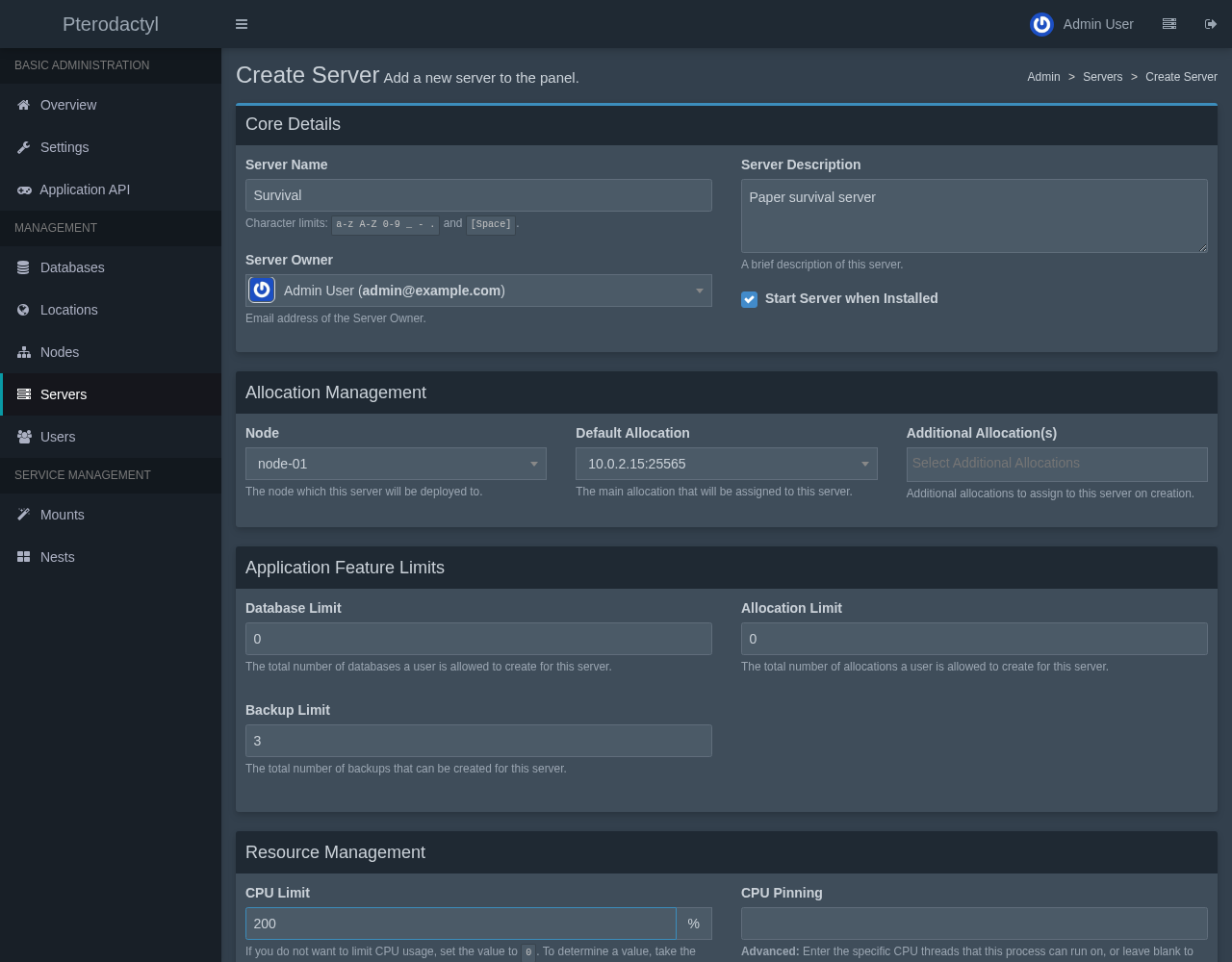
The feature limits come next. The database limit and the allocation limit say how many MariaDB databases and extra ports the owner may create alone, and 0 allows none. The backup limit is 3 here, which is the number of backups this server can hold at once.
Set the Resource Limits
The resource panel decides how much of the node this server may use, and Docker enforces it for real:
- CPU Limit: a percentage of one thread, so 100 is one full thread and 200 is two. The form's own help text gives the formula, which is the number of threads multiplied by 100. This server uses 200.
- Memory: 2048 MiB. A container that goes above its limit is stopped by the kernel, so the value includes the Java heap and the memory the Java process needs beyond it. The platform measured about 1.06 GiB for an idle Paper server, and 2 GiB leaves headroom.
- Swap: 0, which disables swap for the container. A value of -1 allows unlimited swap.
- Disk Space: 5000 MiB for the world, plugins, logs, and the server jar.
- Block IO Weight: 500, the default, a relative weight for disk throughput when several servers compete.
The node's totals from the previous section are the ceiling. With over-allocation at 0 percent, the panel refuses to create a server whose limits would push the node past 6144 MiB of memory or 30000 MiB of disk.
Choose the Nest and the Egg
A nest is a category of games, and an egg is the template for one game inside it. Choose the Minecraft nest and the Paper egg. Paper is a high-performance fork of the Minecraft Java server that keeps vanilla gameplay and adds plugin support and many performance fixes, which is why it is a common first choice. The same nest also contains eggs for vanilla Minecraft, Forge, Bungeecord, and Sponge.
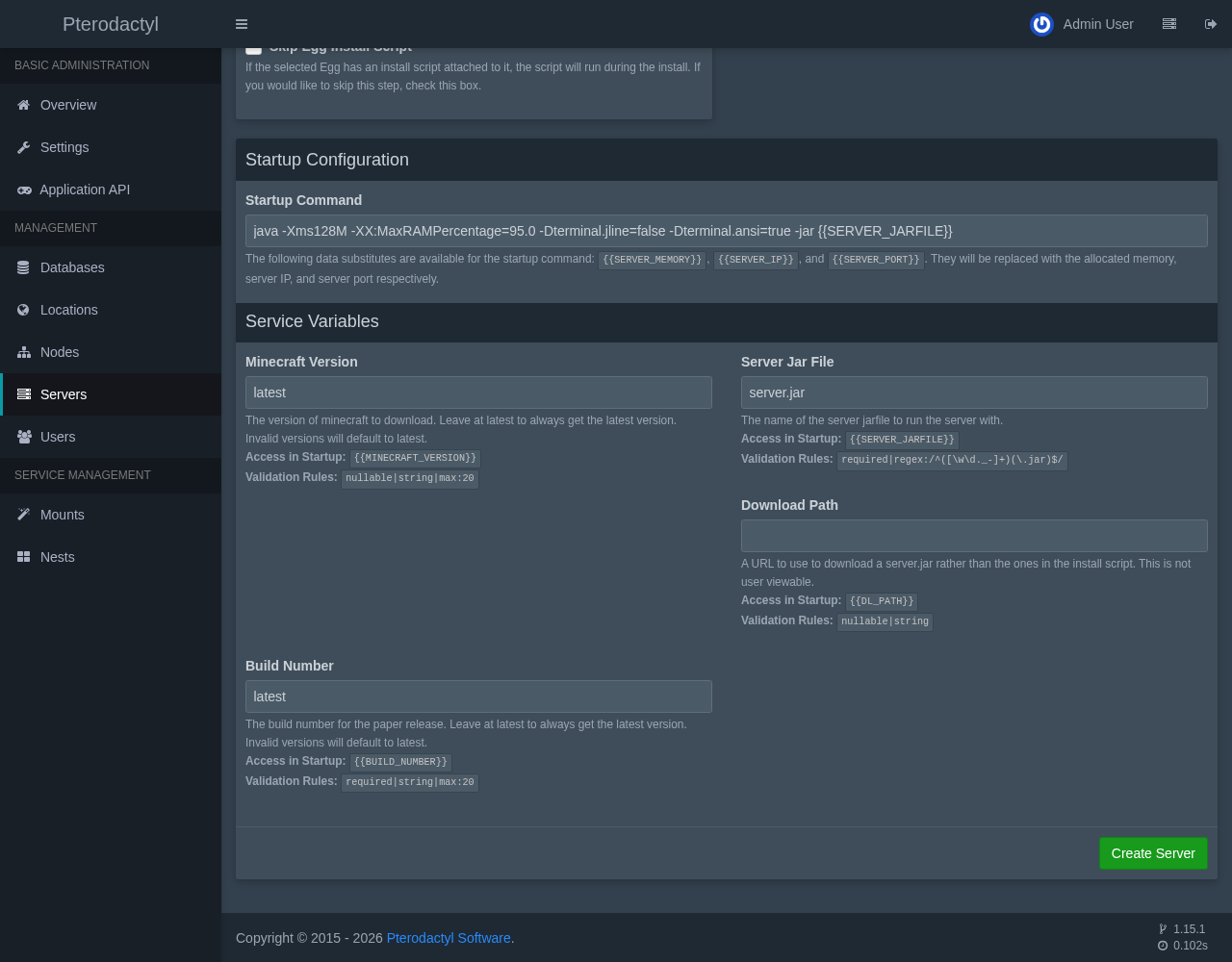
Choosing the egg fills the rest of the form. The startup command is a java line, the Docker image is Java 25 by default, and a few variables appear at the bottom: the Minecraft version, the server jar name, a download path, and the Paper build number. Leave latest in the version and build fields and the install script downloads the newest release. Choose Create Server.
Does the server download Minecraft right now?
Yes, and the first server on a node takes the longest. Wings pulls the installer image and the Java image, which is around 800 MB, then runs the egg's install script in a short-lived container. The script asks the PaperMC download service for the newest version, saves a roughly 53 MiB server.jar into the server's folder, and writes a default server.properties. Once the images are on the node, an installation like this one finishes in about a minute.
If an installation hangs or the jar is missing afterward, look at the node's log with journalctl -u wings and at the installer container with docker logs. A common cause is DNS inside the containers, which Part 2 covers in its Resolving timed out note.
Start the Server and Accept the EULA
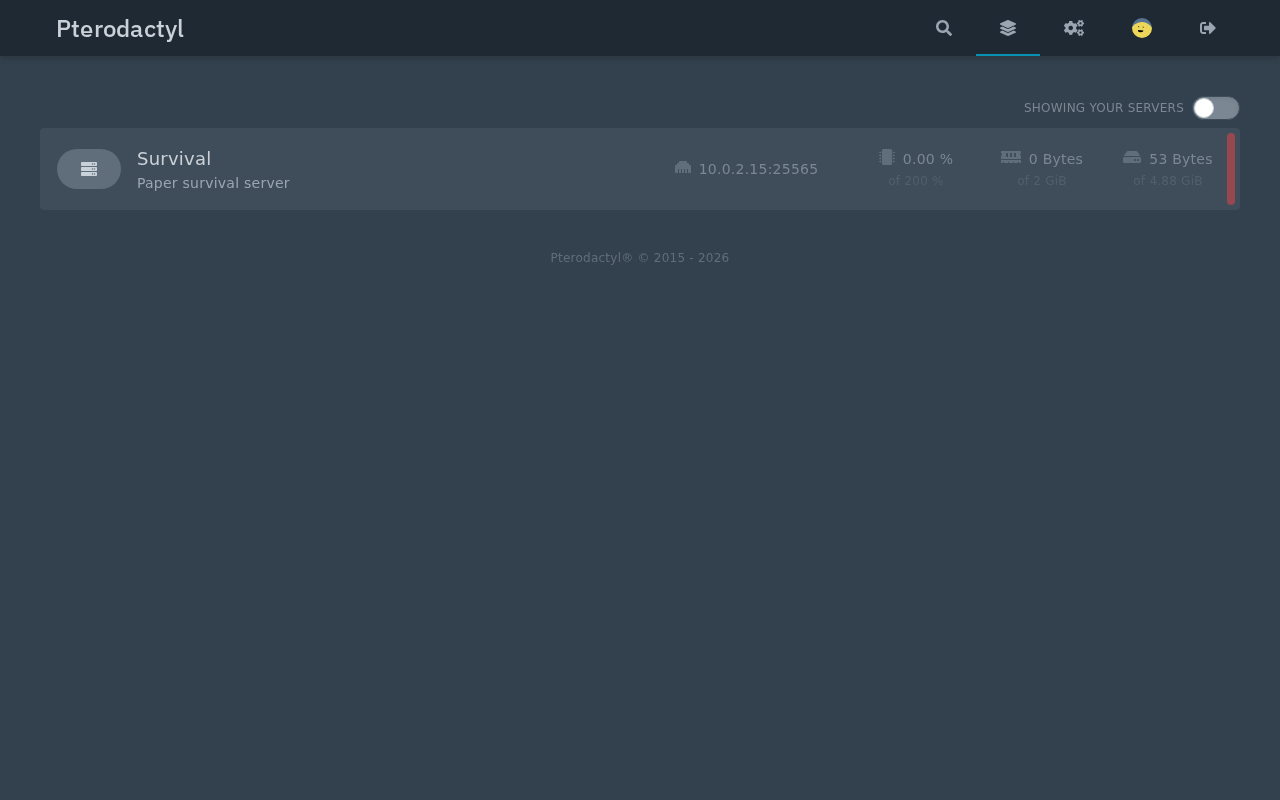
When the installation finishes, the server appears in the user dashboard. Open the account dashboard, the page at the panel's root address, and the list shows each server with its address and live usage. The colored bar at the right edge of a row shows the state of the server, and it is green while the server runs.
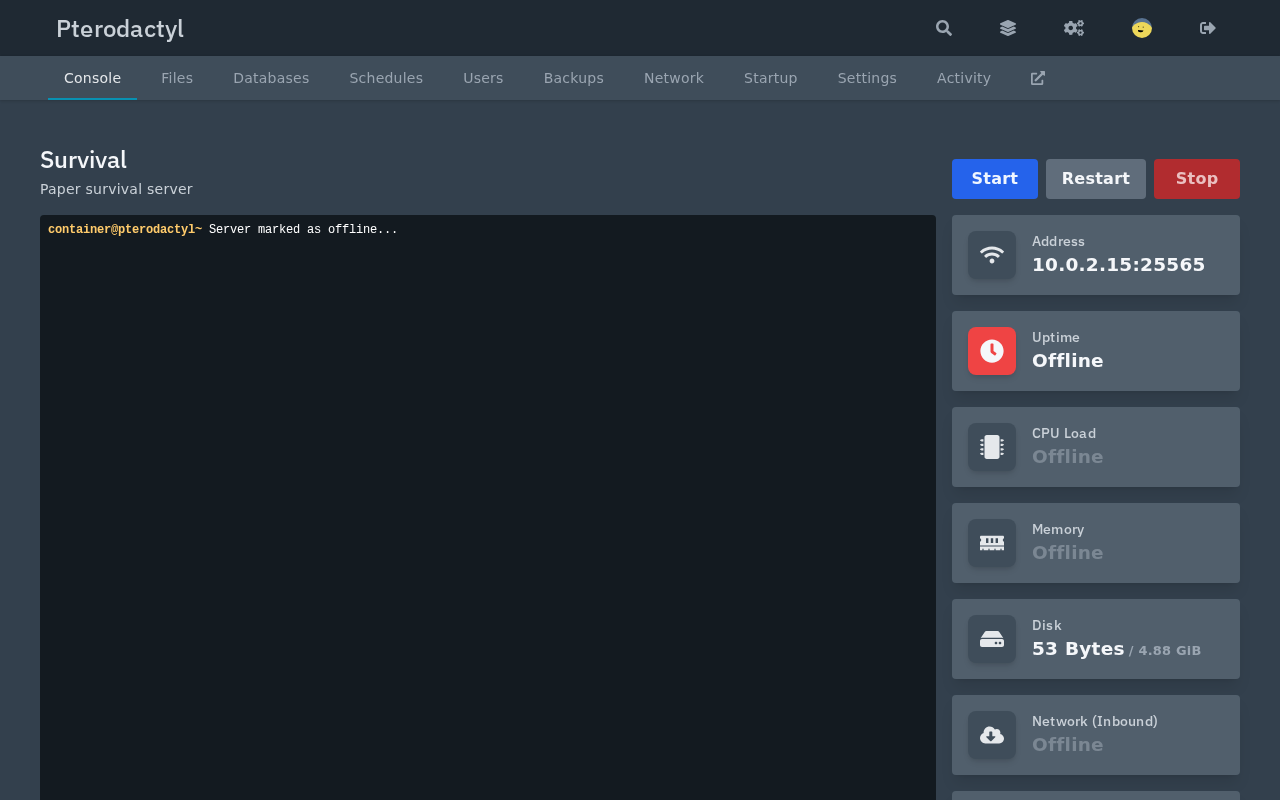
Open the server to reach its console page. It has a power button row at the top right, the console in the middle, and a column of live statistics next to it. A brand-new server is offline, so the console is empty and the uptime reads Offline.
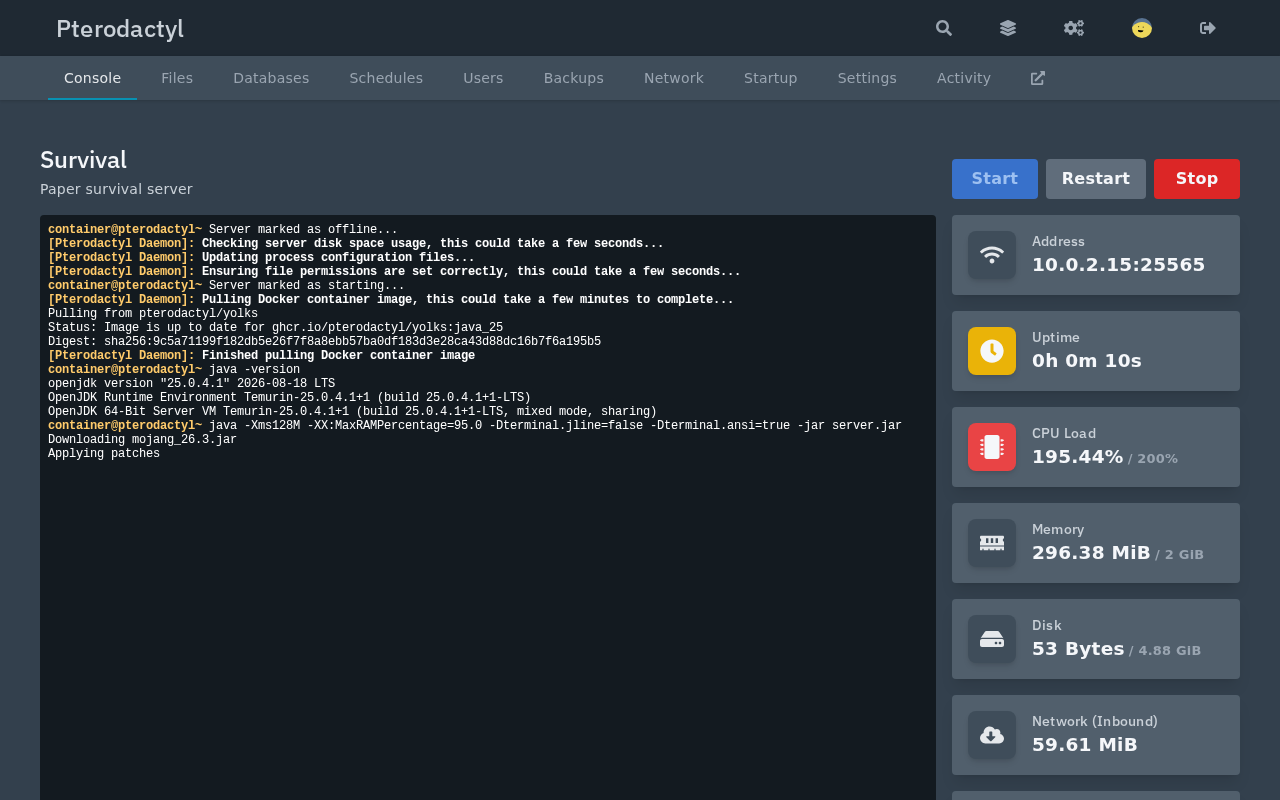
Press Start. The console fills with messages from the Pterodactyl daemon first, then from the Java process: Wings checks disk usage, updates the process configuration, pulls the Docker image if it is missing, and prints java -version before the real command. Paper then prints its own version, which was 26.3 build 169 on Java 25 at the time of writing.
Accept the Minecraft EULA
The first start stops by itself, because Mojang requires every server owner to accept the Minecraft EULA before the server runs. The Paper process says so in the console, and then the daemon reports that the process stopped. The panel recognizes that message and opens a dialog with a link to the license text.
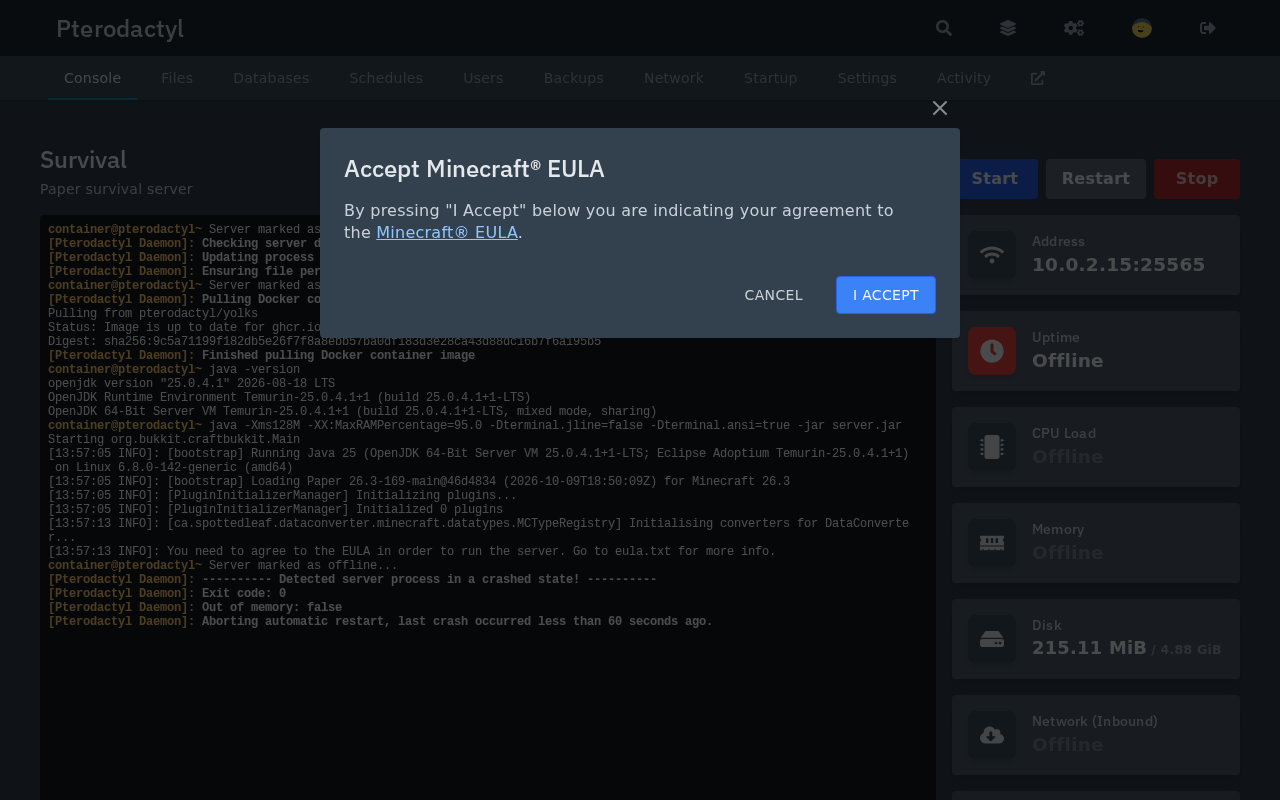
The console behind the dialog shows the line You need to agree to the EULA in order to run the server, followed by a crash notice with exit code 0 and the sentence Aborting automatic restart, last crash occurred less than 60 seconds ago. Neither is a problem. Exit code 0 means Paper stopped on purpose, and the daemon does not try to restart it.
Choose I Accept, and the panel writes eula=true into eula.txt and starts the server again by itself. This time Paper creates the world, which takes about half a minute on a small machine, and ends with the line that every Minecraft admin waits for:
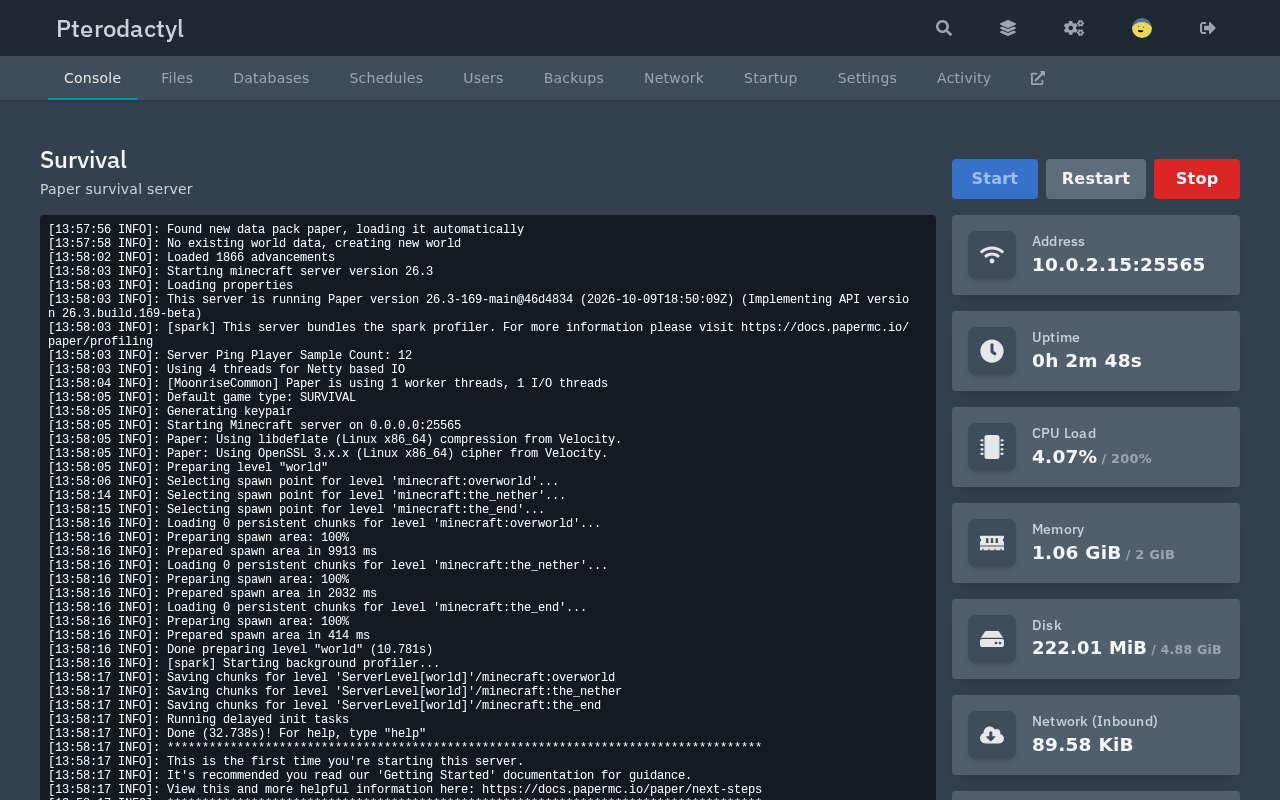
The statistics beside the console show what the server really uses: 1.06 GiB of memory out of the 2 GiB limit and 222 MiB of disk, with the CPU idle. Those figures are the ones to watch when you decide how many servers a node can carry.
Run Commands from the Console
The input line below the console sends text straight to the Minecraft server's standard input, exactly as if you typed it in a terminal on the machine. The command list prints who is online, and say broadcasts a message to every player.
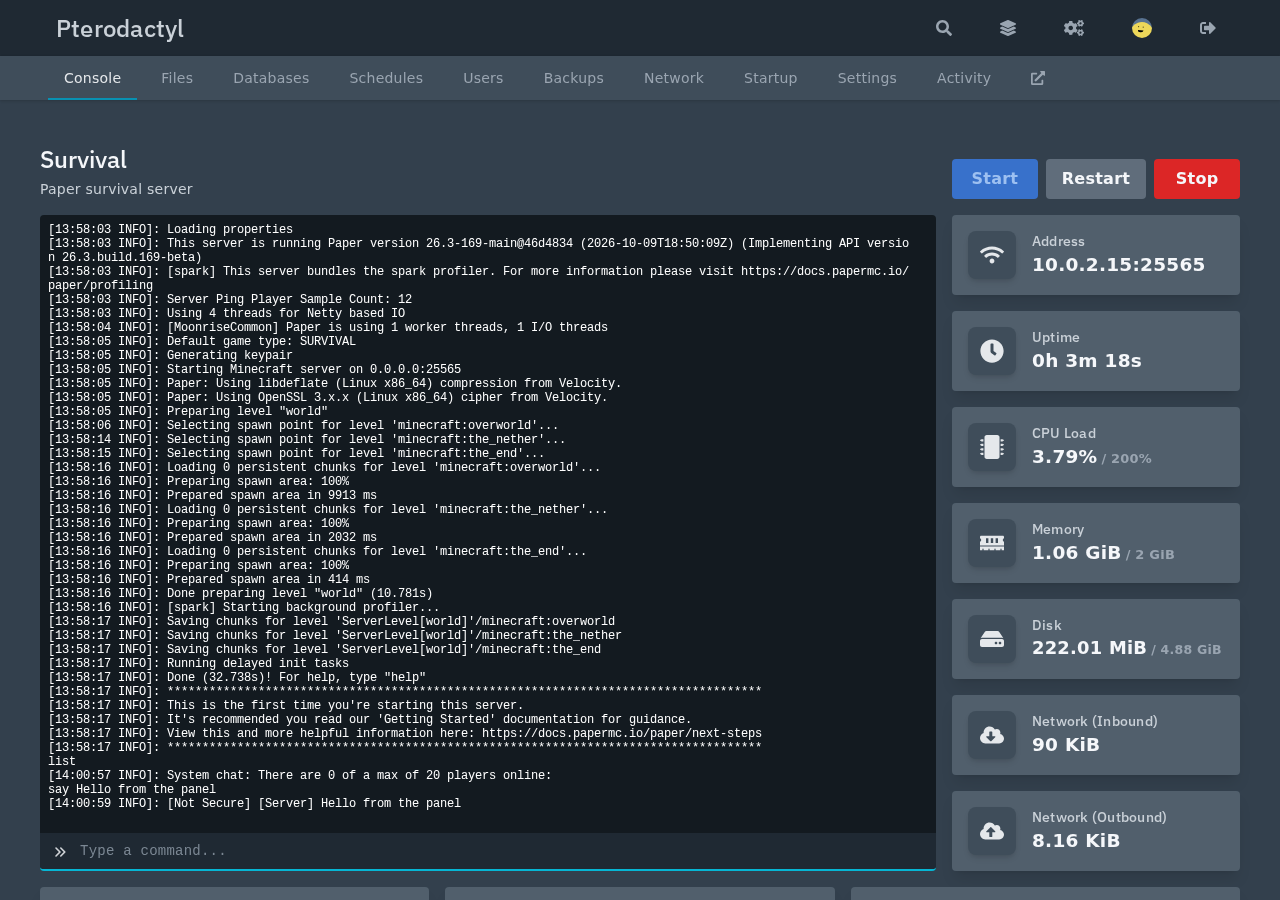
The answer 0 of a max of 20 players online also shows the defaults of a fresh server.properties: 20 player slots and the standard game port. A player can now add the machine's address to the multiplayer list of a Minecraft Java Edition client, and the server list shows it with the default message of the day, A Minecraft Server.
Before inviting players: make sure their Minecraft Java client runs the same game version as the server. To check, read the version in Paper's first console lines, which was 26.3 here, because a client on a different version is refused unless you add a plugin that translates protocols.
Edit Files and Startup Settings
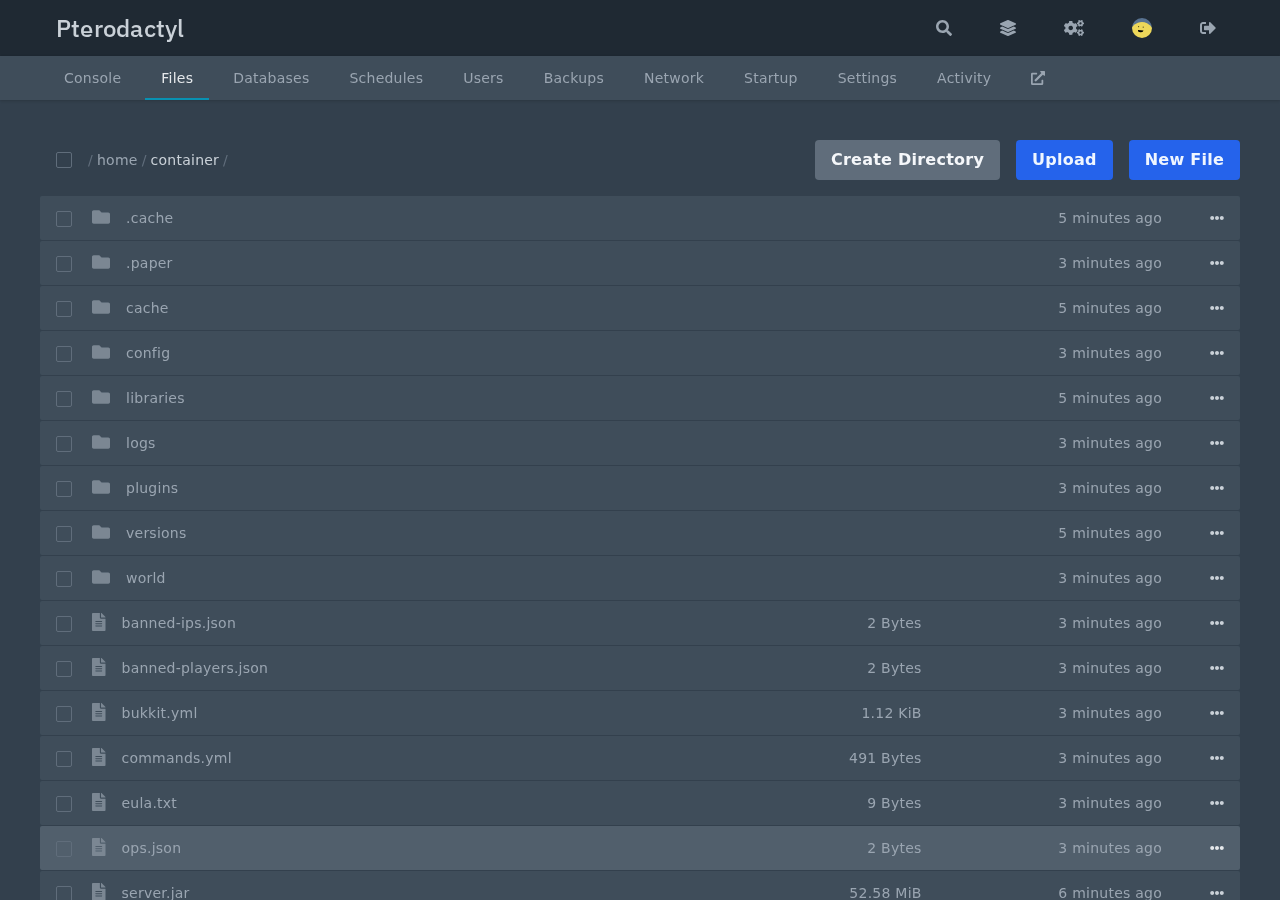
The Files tab is a web file manager that reads and writes the server's folder, which the daemon keeps in /var/lib/pterodactyl/volumes on the node. It shows the files Paper created on the first start: the world folder, plugins, server.properties, and the configuration files for Paper and Bukkit. A click on a file opens an editor, so changing the message of the day or the player limit takes a few seconds, and a restart applies the change.
The Startup tab holds what the owner may change without touching the egg. It shows the startup command, a Docker image selector, and the variables from the creation form.
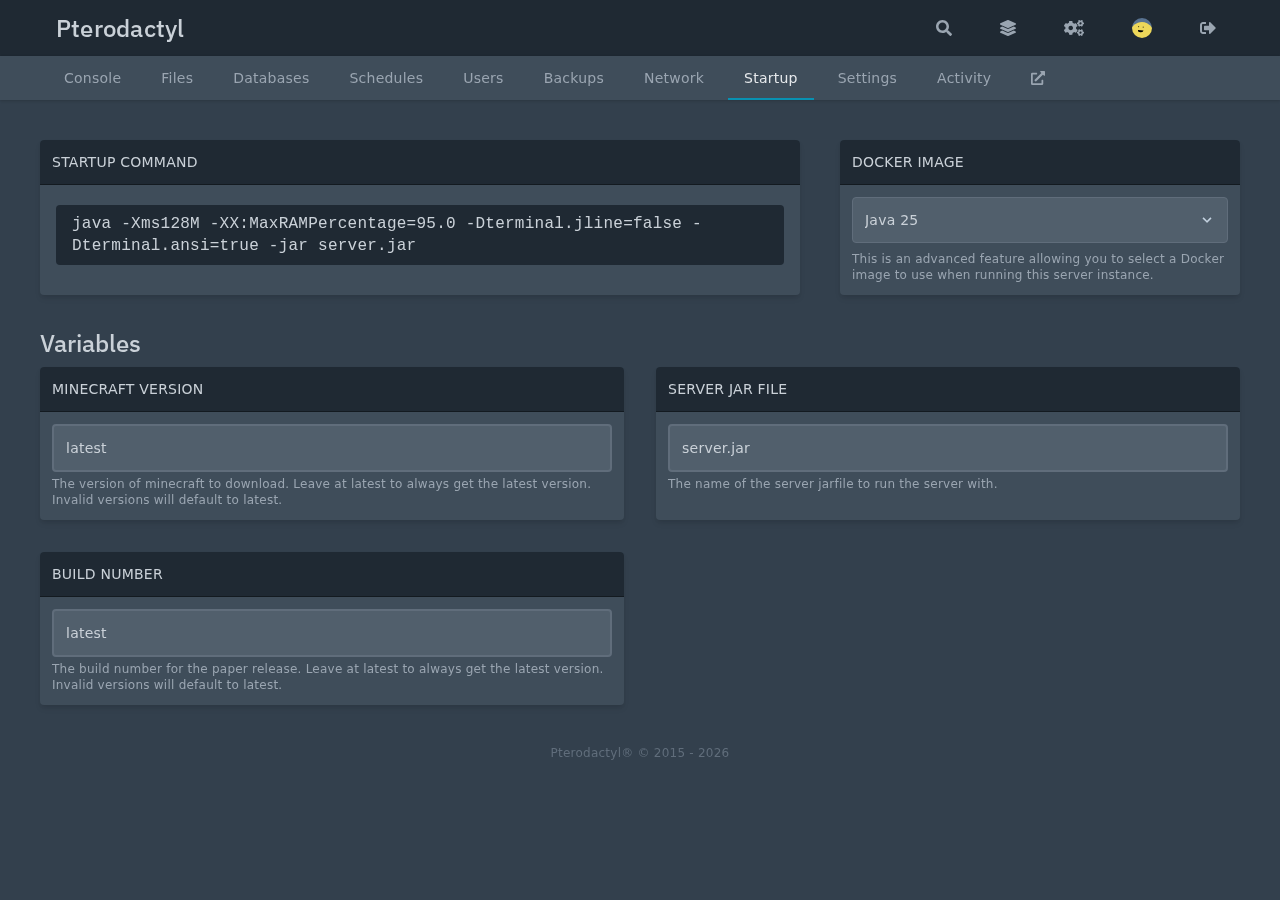
Two settings here deserve attention. Replace latest in Minecraft Version with a specific number, such as 1.21.11, if players must stay on one release, because reinstalling the server with latest downloads whatever is newest that day. The Docker image list offers older Java versions too, and a Minecraft release that needs an older Java should use the matching image.
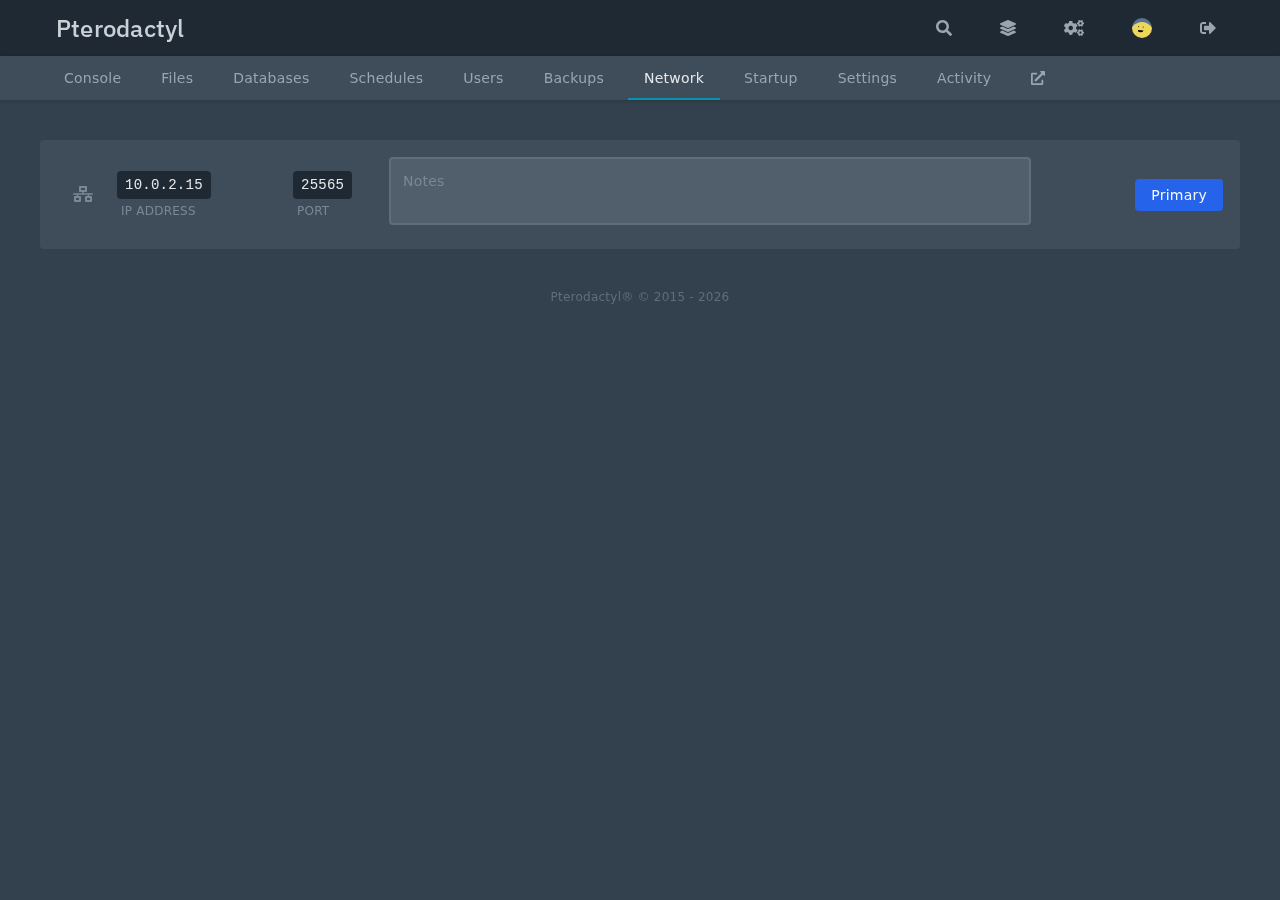
The last tab worth opening now is Network. It lists the allocation this server uses, marked Primary, and it is the place where Part 4 of this guide swaps the machine's address for a routed IPv4.
In summary
- Creating a server means choosing a node, an allocation, resource limits, and an egg.
- The egg downloads the game in a short install container, and the first server on a node is the slowest because of the image pulls.
- The panel offers the Minecraft EULA in a dialog when the server stops on it, and accepting it starts the server again.
- The console, Files, and Startup tabs cover day-to-day administration without a shell on the machine.
In the next section, you'll host a different game on the same node by importing a community egg.