
To build a NAS that still holds your files five years from now, you'll first choose the machine and the disks that will carry them.
Understand What a NAS Needs from Its Hardware
A NAS (network-attached storage) is a computer whose only job is to keep files and hand them out over the network. That job is gentle on the processor and demanding on everything else: memory holds the file system's cache, the disks hold your data, and the network port decides how fast any of it reaches your laptop. TrueNAS, the operating system used throughout this guide, publishes a short list of minimums: a 2-core 64-bit Intel or AMD processor, 8 GB of memory, a 16 GB SSD boot device, and two data disks of the same size.
That list is lower than most people expect, which is good news on a budget. A ten-year-old office PC clears every line of it.
Does a NAS need a fast processor?
Sharing files hardly touches it. Serving a document or a photo over the network takes a few percent of a modern core, so the 2-core minimum is the official figure and a realistic one. A faster processor starts to pay off when the NAS also runs apps, such as a media server that converts video on the fly, or when you encrypt datasets.
If you plan to run apps or add many disks later, check the TrueNAS hardware guide to see the current recommendations before you buy.
Compare the Three Kinds of Machine
Three kinds of hardware turn up on a budget, and each one gives something up:
- Old desktop PC: the cheapest start, since offices resell them by the pallet. Most desktop boards offer four to six SATA ports and room for a few 3.5-inch disks, and ordinary case fans keep the noise low enough for a shelf in the living room.
- Mini-PC: small, quiet, and frugal with power, but it typically has room for one or two drives. The tempting fix is a USB drive enclosure, and the TrueNAS documentation advises against it: "Avoid using USB-connected hard disks for primary storage with TrueNAS." A USB bridge can also report a disk's serial number wrongly, which makes two disks look identical to the system.
- NAS case with a board of your choice: the dearest of the three, and the only one designed around the disks. You get dedicated bays, airflow across every drive, and a swap that takes a minute instead of an evening with a screwdriver.
For a first NAS, the old desktop PC costs least and teaches most. If a spare PC is already sitting in a closet, you can finish this entire guide having bought nothing but the disks.
Before buying a used machine: make sure it has at least one free SATA port for each data disk, plus one more for the boot SSD. To check, read the motherboard manual or count the ports in the seller's photos of the board.
Pick the Disks
The disks are the one part you can't economize on, because protecting them from failure is the reason the NAS exists. Buy 3.5-inch drives sold for NAS use, all of the same capacity, since TrueNAS builds a pool from identically sized devices.
Avoid SMR Drives
Hard drives record data in one of two ways. CMR (conventional magnetic recording) writes each track on its own. SMR (shingled magnetic recording) overlaps tracks like roof shingles to fit more data on the same platter, which means rewriting one track forces the drive to rewrite its neighbors too.
Does that matter if the drive is only storing family photos?
It does, because of what a ZFS pool asks of its disks. Replacing a failed drive makes the pool write for hours without a break, and a drive-managed SMR disk can stall under that load. The TrueNAS documentation says drive-managed and host-aware SMR drives "function poorly" and host-managed SMR drives are not supported.
The best-known case came in 2020. Western Digital had sold SMR versions of its WD Red line without saying so, and ZFS users reported that a 4 TB WD40EFAX could return errors during a resilver and get kicked out of its pool, as this TrueNAS forum thread documents. The company then renamed its CMR drives WD Red Plus and kept WD Red Pro as the higher-end CMR line.
Before buying a disk: make sure its exact model number is CMR. To check, search the model number on the manufacturer's datasheet or specification page, because the word "NAS" on the box says nothing about the recording method.
Is a used drive a bad idea?
Not by itself. A used disk can be fine when its SMART report shows moderate power-on hours and zero reallocated sectors, and the pool has enough redundancy to absorb a surprise. SMART is the health report every drive keeps about itself, and the last section of this guide shows how TrueNAS reads it.
Choose a Pool Layout and Count the Bays
TrueNAS groups disks into a pool, and the pool is built from one or more vdevs. The layout of a vdev decides two things at once: how much of your raw disk space you can use, and how many disk failures the data survives.
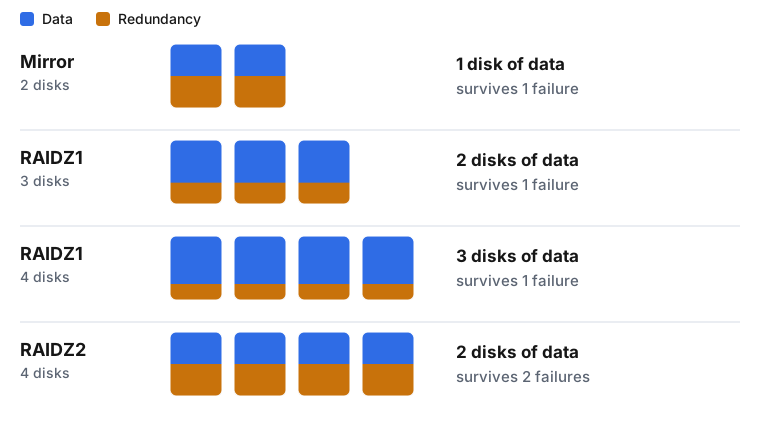
A mirror keeps every block on both of its disks, so either one can fail. RAIDZ1 sets aside the equivalent of one disk for parity and survives one failure. RAIDZ2 sets aside two disks' worth and survives two. With four 4 TB disks, for example, RAIDZ1 gives you 12 TB of usable space and RAIDZ2 gives you 8 TB. ZFS keeps a small share for its own bookkeeping, so expect a few percent less than the arithmetic.
- 2 bays: a mirror, the simplest layout there is. Two 4 TB disks give 4 TB, and either disk can die without losing a file.
- 3 or 4 bays: RAIDZ1 gives the most space for the money. The catch is that a second failure during a rebuild loses the pool, which is the risk that grows as disks get larger.
- 4 bays and large disks: RAIDZ2 trades half the raw space for a pool that survives two failures, a fair deal once drives pass the 8 TB mark and a rebuild can take a day or more.
Can you add a disk later when the pool fills up?
Yes, with limits. TrueNAS 25.10 can extend a RAIDZ vdev one disk at a time, and the documentation spells out the catch: the fault tolerance stays the same, so a four-wide RAIDZ2 that grows to six disks still survives only two failures. The other route is adding a second vdev of the same type, such as another mirror pair.
Check Memory, Boot Drive, and Network
Three smaller parts finish the shopping list, and each one has a specific job in the NAS.
Size the Memory
ZFS keeps recently read data in memory, so more RAM means fewer trips to the disks. 8 GB is the installer's minimum, and the TrueNAS hardware guide adds 1 GB for each drive past eight. A four-bay NAS never reaches that threshold, which makes 8 to 16 GB a comfortable range for file sharing plus a few apps.
Does the memory have to be ECC?
No, though the documentation says most users strongly recommend it. ECC memory detects and corrects flipped bits before they can be written into the pool. If a used board with ECC support costs about the same as one without, take the ECC board. If it costs noticeably more, a non-ECC build with good backups is a sound budget choice.
Reserve a Boot SSD
TrueNAS installs onto its own drive, and the installer warns that this drive becomes unavailable for storage pools. A two-bay NAS therefore needs a third drive for the system, which can be a small SATA or NVMe SSD. The documentation lists 16 GB on its hardware page and 20 GB on its installation page, so any 32 GB SSD satisfies both. The documentation discourages spinning disks and USB sticks as boot devices, and the installer repeats the warning about USB sticks on screen.
Match the Network Port to the Disks
A Gigabit Ethernet port moves at most 125 MB/s (1 gigabit per second divided by 8 bits per byte), and real transfers land a little below that. A single modern hard drive can read faster than that on its own, so on Gigabit the network is the slowest part of the chain, and a pool of several disks gains nothing from the extra speed. That is plenty for photos, documents, and nightly backups. If you edit video straight from the NAS, a 2.5 Gigabit port on both ends is the upgrade worth paying for.
The documentation names Intel and Chelsio network interfaces as the best-supported options, so check the chipset before relying on an add-in card.
Do you need a hardware RAID card?
No. ZFS wants to see each disk directly, so it can read the drive's health data and repair damaged blocks itself. A RAID card sitting between the two hides exactly that information.
Before connecting the disks: make sure they plug into the motherboard's SATA ports or into a host bus adapter (HBA), never into a RAID card's own array. To check, open the card's settings and confirm it shows each drive as a separate disk, or choose an HBA flashed to pass-through mode.
Plan Power, Noise, and Backup Space
A NAS runs around the clock, so a few watts add up on the electricity bill. The formula is simple: watts, times 24 hours, times 365 days, divided by 1,000, gives kilowatt-hours per year. As an illustration, a NAS that averages 30 W uses 262.8 kWh a year, which costs about 79 euros at 0.30 euro per kWh. Your own wattage and tariff change the result, and a cheap plug-in power meter measures the real draw in a few minutes.
Spinning disks and fans make noise, and disks add a low hum that carries through furniture. A closet or a shelf away from the bedroom keeps it out of earshot, and a rubber or foam mount under the disks takes care of most of the vibration.
Power cuts also matter to a pool that is writing data. TrueNAS can talk to a battery-backed UPS over a serial or USB connection and shut down gracefully when the battery runs low, so a small UPS is worth adding once the NAS holds files you can't replace.
The last item on the list is space for a second copy of your data. A NAS with one set of disks is one copy, and the final section of this guide shows how to send another copy elsewhere. Budget for an external disk or an online storage plan now, rather than after the first scare.
In summary
- TrueNAS asks for 8 GB of memory, a 2-core 64-bit CPU, and a boot SSD.
- CMR disks of identical size are the safe choice for a ZFS pool.
- A mirror or RAIDZ layout survives a disk failure, and a backup covers everything else.
- Disks connect directly to SATA ports or an HBA, never through a RAID card.
In the next section, you'll install TrueNAS on the boot SSD and build the storage pool.